

Undercard Pro puts author cards on your site as blocks, and publishes the same author record as structured data. The card is what a reader sees. The JSON-LD is published for search engines and AI assistants to read. Both are built from one author record, so they cannot describe different people.
No card is added to your posts automatically. You place a card where you want one.
Installation
After you buy Undercard Pro, the receipt screen shows two values that look alike. The one the plugin needs is the License key, which is 26 characters long. The License ID above it is not a key. Copy the license key with the key icon beside it — on a phone, select the key and copy it — then click the Download Undercard Pro button to download the plugin zip file.
If you leave the receipt before copying the key, sign in to your account and open Licenses. For an active license, click the key icon beside Undercard to copy the key again, or the download icon to download the zip again.
Then, in WordPress:
- Go to Plugins and open the Add Plugins screen, then click Upload Plugin at the top.
- Choose the zip file and click Install Now.
- Click Activate Plugin.
- Go to Settings → Undercard, paste your key into the License Key field and click Save Changes. Once the key is accepted, the screen shows License is active. under the field.
That settings screen holds your license key and nothing else. Everything else is set where you would look for it: author details on the profile screen, the byline in the post editor, and each card's look in the block sidebar.
Before the key is saved
The cards, the Author Profile block, bylines, guest authors and profile fields all work without a key. What waits for an active license is everything a machine reads: the structured data, the author profile pages, the author archives that follow the byline, and the canonical link and meta description on profile pages.
Author details
Each author fills in their own details under Users → Profile, in the section headed Undercard — Author Identity. An administrator can fill them in for anyone from Users → All Users.
- Profile photo — used before Gravatar. With neither, cards show the author's initials.
- Job title — shown on the card.
- Employer, Employer website and Employer founded — the organization the author works for.
- Education — where the author studied. No card shows it; the profile page and the structured data do.
- Areas of expertise — comma separated. The first term appears on the card; the profile page and the structured data carry all of them.
- Handle — defaults to the author's profile slug when left blank.
- Availability badge — optional, for example "Available for work". Hidden when blank.
- Street address, City and Country.
- Call to action label and Call to action link — the button on the Meridian and Aurora cards. Unless you set a link, it goes to the author's page and reads View all posts (Meridian) or View posts (Aurora). With a link and no label, it reads Learn more.
- Social profiles — one URL per line.
- Hide my contact download — see Contact download below.
Three more live in WordPress's own Contact Info section of the same screen, where other plugins already look for them: Website, Public phone and Public email. Undercard never publishes the account's login email. Leave Public email blank to publish no address.
The author's bio is WordPress's own Biographical Info field.
Cards show what an author filled in and leave out what they did not, so an empty field never shows up as an empty row.
What is filled in here is published. With an active license, the bio, job title, employer, education, expertise, website, social profiles, phone, public email and address appear in the structured data on every page that credits the author, whether or not a card on that page shows them. Leave a field blank to publish nothing for it. If an author has not uploaded a photo, the structured data points at their Gravatar image address, which is built from a hash of their email address.
Structured data preview
Below the fields, Structured data preview shows a preview of the Person node Undercard would
publish for this author, built from what is filled in above. Open What search engines and AI
assistants would read to see it. Guest authors have the same preview on their own edit screen
once they have been saved.
Guest authors
A guest author is somebody you credit who has no account on your site — a contributor, an interviewee, a reviewer from outside.
Go to Users → Guest Authors and click Add at the top of the list.
- The title is the guest's name.
- The editor is their bio.
- The featured image is their portrait.
- The Undercard — Author Identity box below the editor holds the same fields as a user profile, except the contact-download opt-out, plus Website, Public phone and Public email.
Each guest gets a real profile URL of their own, under /guest-author/ — for example
/guest-author/jane-doe/.
Cards draw a guest from the same fields as a registered user. Guests have no Gravatar, no post and comment stats on the Aurora card, and no contact download.
Bylines
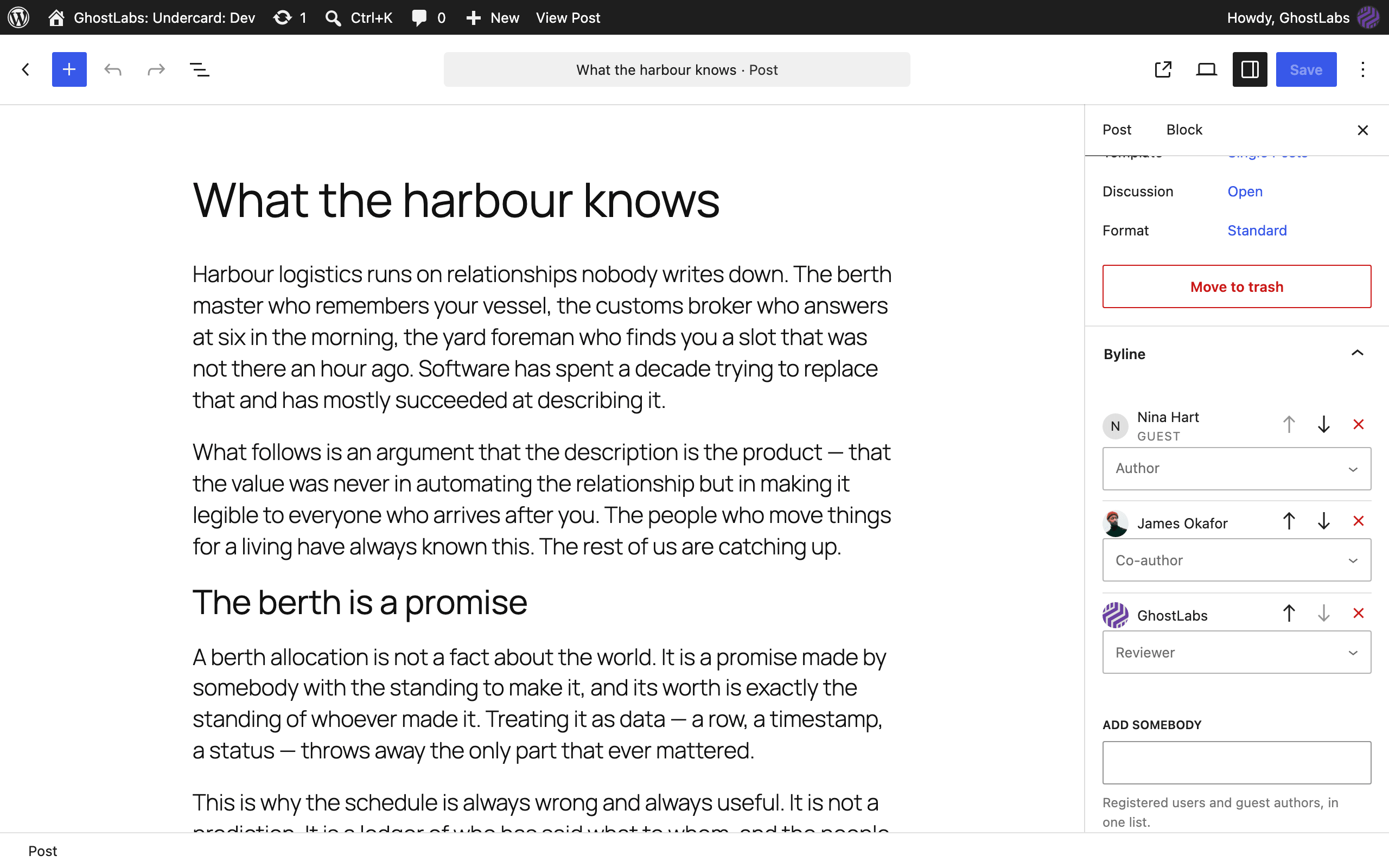
Open any post and find the Byline panel in the editor sidebar.
- Add somebody searches your site's writers — anyone who can write posts — and guest authors, in one list.
- Each person gets a role: Author, Co-author, Editor, Reviewer or Fact checker.
- The up and down buttons set the order. The byline keeps it everywhere — on the cards and in the structured data.
- A post with nothing in the panel follows its WordPress author, exactly as it did before.
The panel appears on posts and pages, and on any public custom post type that uses the block editor and supports authors.
In a block theme, the Author Name block — and the name and link in the older Author block — show the first person in the byline instead of the post's account owner. Avatar and Author Biography blocks are not changed. This only happens on posts where a byline has been assigned.
Card blocks
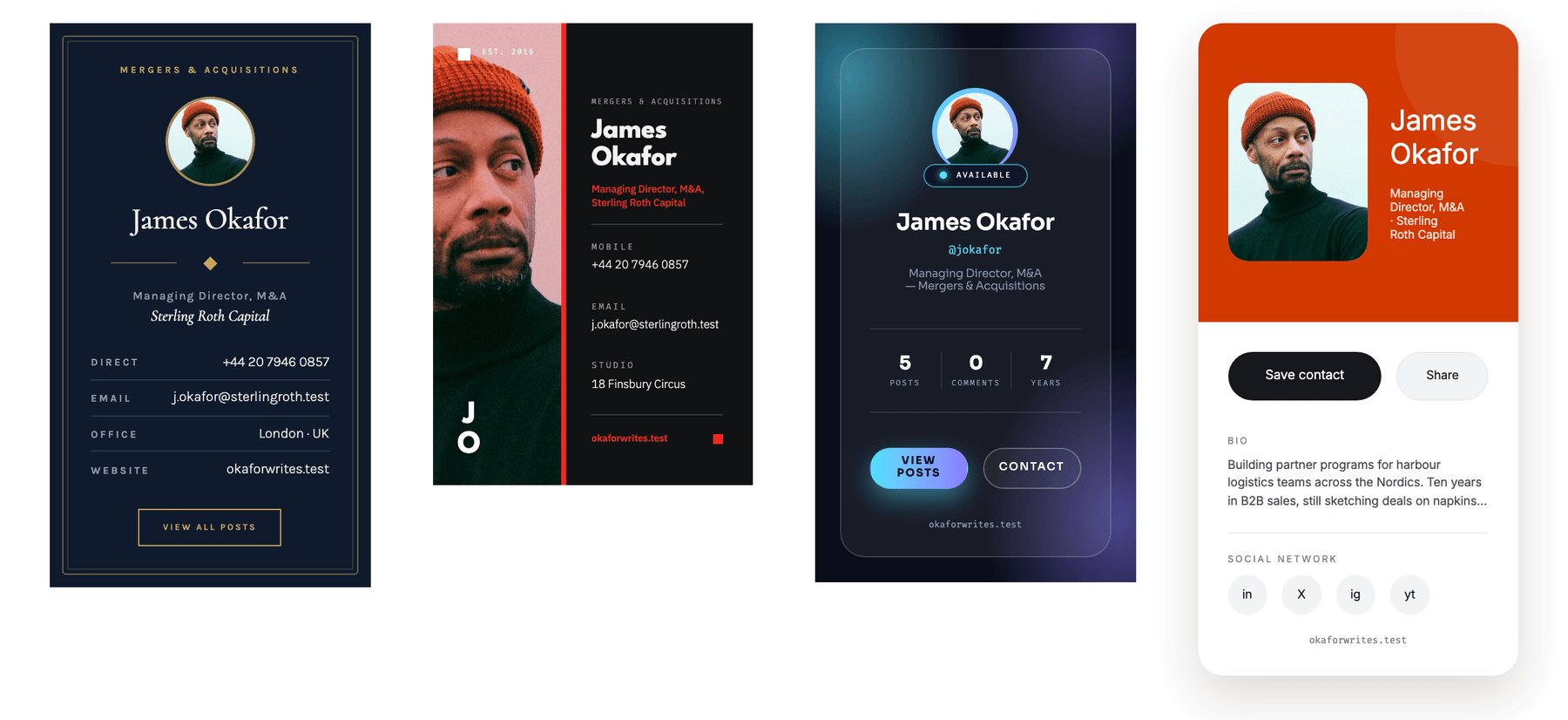
In the editor, type /Undercard to find the four card blocks.
- Undercard: Meridian — a typographic business card with contact rows.
- Undercard: Cobalt — a duotone portrait, with a panel carrying the text.
- Undercard: Aurora — frosted glass over blurred color, with a stat strip.
- Undercard: NFC Profile — a digital business card with a bio and a save action.
The same search also lists Undercard: Author Profile, which shows a whole profile rather than a card. See The Author Profile block below.
Who a card shows
You do not pick a person in the block. A card shows whoever the post it sits in credits.
- In a post, it shows that post's byline.
- In a template part, such as the footer of a single-post template, it shows the byline of whichever post the template is displaying.
- Inside a Query Loop, each row's card shows that row's own author, so one block in a loop draws a different person on every row.
When a post credits more than one person, one block draws a card for each of them, in byline order, with each person's role printed beside their card. A post with a single author gets just the card, with no role label.
Block settings
Select a card and open the block sidebar.
Layout. Every family has four layouts, and Aurora has a fifth.
- Meridian — Vertical, Horizontal, Row, Chip.
- Cobalt — two full-size layouts that depend on the variation (Column and Photo Split on Cobalt II, Bottom Panel and Photo Backdrop on Cobalt V), plus Row and Chip.
- Aurora — Cyan Violet, Banner, Mini, Row, Chip.
- NFC Profile — Portrait, Banner, Row, Chip.
Theme or variation.
- Meridian — Midnight, Ivory or System. System follows the visitor's device.
- Aurora — Midnight, Daylight or System.
- Cobalt — Cobalt II — ink panel or Cobalt V — ivory panel.
- NFC Profile — Ember — light or Onyx — dark.
Cobalt and NFC Profile variations are separate designs rather than light and dark versions of one, so both can appear on the same page.
Avatar or Portrait. Use the author's photo or show their initials — on Cobalt, a photograph or a tinted panel. Without an uploaded photo, the card uses the author's Gravatar if they have one, then their initials.
Accent (Cobalt only). Tints the portrait and sets the color of the role, the site and the rules. Leave it empty for the variation's own accent.
Profile photo. Choosing a photo here saves it to the profile of the post's WordPress author — not to the block, and not to a co-author or guest the card may be showing. The panel appears only if you can edit that user's profile. To set anyone else's photo, use their profile screen.
Focal point and Scale (Cobalt and NFC Profile, with a photograph selected). Which part of the photo stays in frame on this card, and how far it is enlarged. These apply to this block only, so two cards can frame the same portrait differently.
Name heading level. Sets which heading level the author's name uses, H1 to H6, so the card fits the page's outline. The default is H3.
The NFC Profile card
Depending on layout and variation, the NFC Profile card carries up to three actions:
- A QR code that opens the author's profile page.
- Save contact — downloads the author's details as a
.vcfcontact file, when one is offered. See Contact download below. - Share — opens the device's share sheet where the browser has one, and copies the link where it does not.
Structured data
With an active license, Undercard Pro publishes the author record as JSON-LD in the page's
<head>. It is never mixed into the card's HTML, so restyling a card cannot change what is
published.
What is published, and where
- On a post — an
Articlenode, and aPersonnode for everyone the byline credits. The article points at each person by@id, in byline order. A post with no byline set credits its WordPress author. - On pages and other post types — only when a byline has been assigned in the Byline
panel. The node is a
WebPagerather than anArticle. A page nobody was credited on publishes nothing, so your privacy policy does not name whoever owns the account. - On an author's page and a guest author's page — a
ProfilePagenode whose main entity is that author'sPersonnode: the node every article points at by@idwhen Undercard publishes the graph itself. With Yoast SEO or Rank Math, a registered author's page carries that plugin's ownProfilePageinstead; a guest author's page is always Undercard's.
Roles are published under the schema.org property that fits them:
- Author and Co-author →
author - Editor →
editor - Reviewer and Fact checker →
contributor
schema.org's Article has no property for a reviewer or a fact checker, so both go under the more
general contributor rather than claiming something stronger.
A Person node carries whatever the author filled in: name, url, description (the bio),
image, jobTitle, worksFor (with the employer's website and founding year), alumniOf
(education), knowsAbout (every area of expertise), sameAs (website and social profiles),
telephone, email and address. Empty fields are left out rather than published blank. Without
an uploaded photo, image is the author's Gravatar address.
The Article node also carries the headline, the published and modified dates, the featured
image, and your site as the publisher.
With Yoast SEO or Rank Math
Many sites already run an SEO plugin that publishes structured data of its own. Undercard Pro detects Yoast SEO and Rank Math and adds its author details to the graph that plugin already publishes — keeping the plugin's own values where both set one — instead of publishing a second graph beside it.
Guest author pages are the exception. Neither plugin knows about an author without an account, so Undercard publishes the guest page's graph itself.
With neither installed, Undercard publishes everything itself.
If Rank Math is installed but its setup wizard has not been completed or skipped, Undercard publishes on its own, and switches to adding to Rank Math's graph once the wizard is done.
Checking what is published
Open a post, view the page source and search for application/ld+json. To read the nodes more
comfortably, paste the post's URL into the Schema Markup Validator at
validator.schema.org. The validator needs to reach the page, so
it cannot check a site that is only on your own computer.
Structured data is information published for machines to read. Undercard does not promise any special search result, and whether a search engine or an AI assistant uses the information is their decision. What Undercard controls is whether the information is there to be read.
Author profile pages
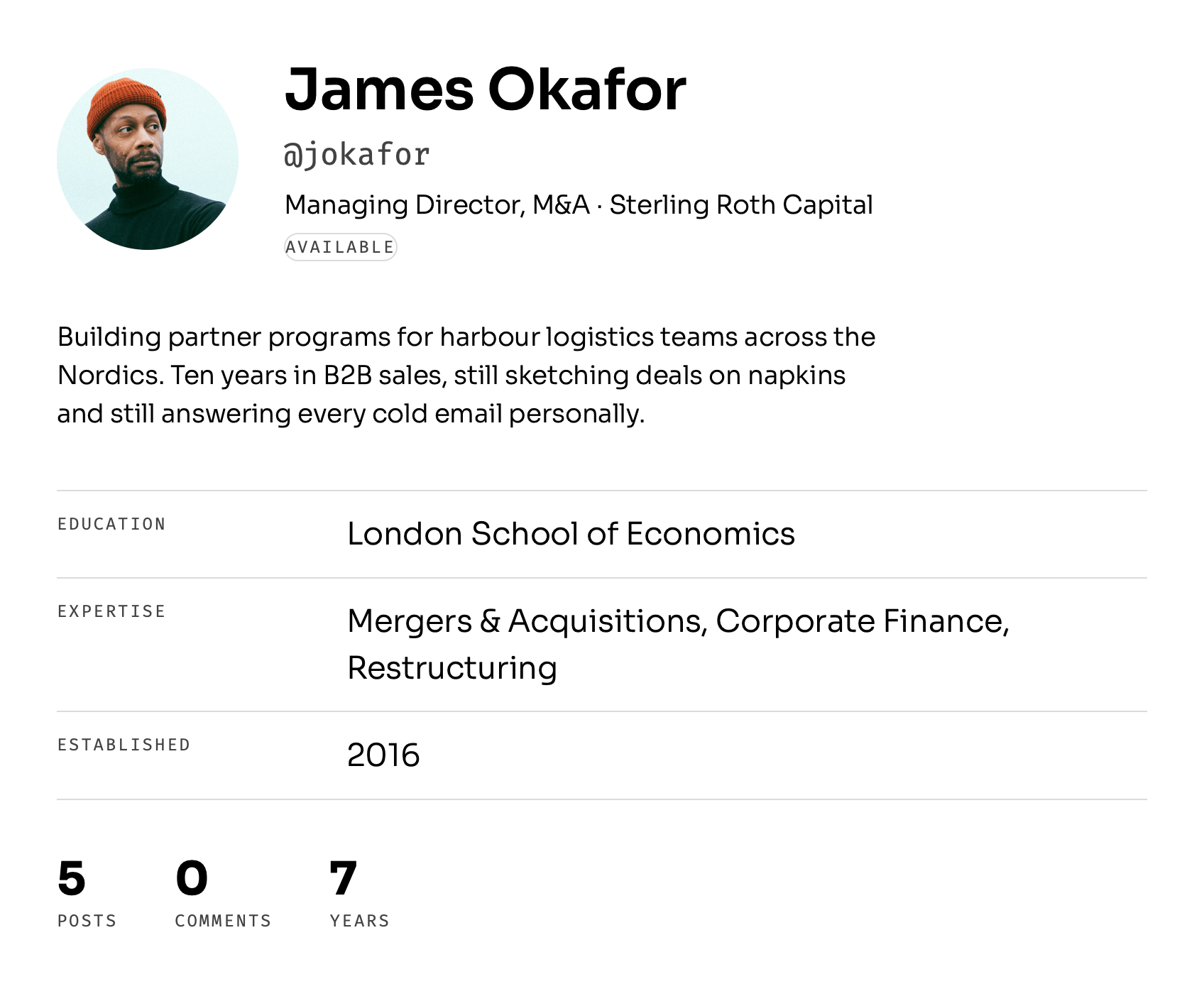
WordPress gives each author an archive — a list of posts with a name above it — but no profile page. With an active license, Undercard Pro replaces the author archive, and each guest author's page, with a composed profile:
- the author's name, portrait, job title, availability badge and bio
- Education, Expertise, and Established — the year the author's employer was founded
- Email, Phone, Address and Website, where published
- a stat strip of posts, comments and years (registered authors only), social links, a Save contact button where one is offered, and a QR code
- Posts by the author, newest first, with their dates
Your theme's own header and footer render around it, in block themes and classic themes alike.
Each card already links to this page, unless you set a custom call-to-action link.
The Author Profile block
The profile on these pages is also a block, Undercard: Author Profile, so you can place it on any page or post: an about page, a team page, or a post introducing a new contributor. It shows the same profile, without the list of posts.
Select the block and open the block sidebar. Author searches your site's writers and guest authors in one list, with guests marked (guest). Leave it empty and the block shows the first person in the post's byline, or the post's WordPress author when no byline has been assigned.
With an active license, Undercard Pro already shows the profile on author pages and guest author pages, in place of your theme's own author template, so there is no need to add the block there.
Canonical link and meta description
Undercard Pro writes the meta description on author pages and guest author pages, and the canonical link on author pages. With Yoast SEO active, or Rank Math once its setup wizard has been completed or skipped, it writes neither and leaves them to that plugin.
Author archives follow the byline
With an active license, an author's archive lists the posts that person is credited on in the Byline panel — including a post they reviewed but do not own, and leaving out a post that was reassigned away from them. Posts with no byline set still count for the account that owns them.
The post count on the Aurora card follows the same rule, so the number on the card and the list it links to agree.
Contact download
The NFC Profile card and the author profile page can offer the author's details as a .vcf
contact file. It is offered only when all of these are true:
- the author is a registered user — guest authors have no contact download;
- the author has published a Public phone, a Public email or any part of a postal address — a website or social link alone does not count;
- the author has at least one published post of their own;
- the author has not ticked Hide my contact download on their profile.
When any of those is not true, no file is served.
Hide my contact download withdraws only the downloadable file. The card, the profile page and the structured data still show whatever the author has filled in. To publish nothing, leave the fields blank.
A site that never wants the download offered can switch it off for everyone — see For developers below.
For developers
Undercard Pro has no settings for the following. Each is a filter, for a theme's functions.php
or a small plugin of your own.
Switch the structured data off entirely, or force a mode. The values are integrate,
standalone and silent:
add_filter( 'ghostlabs_undercard_schema_mode', fn() => 'silent' );
Change the node type a post type publishes — for example, posts as BlogPosting:
add_filter( 'ghostlabs_undercard_schema_node_type', function ( $type, $post ) {
    return $post->post_type === 'post' ? 'BlogPosting' : $type;
}, 10, 2 );
Choose which post types carry the Byline panel:
add_filter( 'ghostlabs_undercard_byline_post_types', fn( $types ) => [ 'post' ] );
Change the guest author URL base from guest-author. This changes every guest's profile address,
and the @id their structured data uses, and their old addresses stop working. Afterwards, open
Settings → Permalinks and click Save Changes so WordPress picks up the new address:
add_filter( 'ghostlabs_undercard_guest_slug', fn() => 'contributor' );
Turn off the contact download for every author:
add_filter( 'ghostlabs_undercard_vcard_enabled', '__return_false' );
Keep the theme's Author Name block naming the account that owns the post, rather than following the byline:
add_filter( 'ghostlabs_undercard_byline_follows_core', '__return_false' );
Keep author archives, and the Aurora card's post count, following the account that owns each post rather than the byline:
add_filter( 'ghostlabs_undercard_archive_follows_byline', '__return_false' );
Stop Undercard writing the canonical link or the meta description on profile pages — for an SEO plugin other than Yoast or Rank Math that writes its own:
add_filter( 'ghostlabs_undercard_author_canonical', '__return_false' );
add_filter( 'ghostlabs_undercard_profile_description', '__return_false' );
Updates and your license
Undercard Pro updates from the Plugins screen like any other plugin, and supports WordPress's automatic updates.
Each license covers the number of sites you bought it for. If it expires, Undercard Pro keeps working — cards, structured data, profile pages and all. Only updates stop until the license is renewed.
External services
Undercard Pro contacts two external services.
The GhostLabs license server (enter.theghostlab.io). To check and activate your license and to offer updates, the plugin sends your license key, your site's domain name, and the plugin's name and edition. Like every request WordPress makes, it also carries your WordPress version and your site's address. The answer is cached for up to a day, so this is not a request on every page. Nothing about your visitors or your content is sent.
Gravatar (Automattic). When a card needs an avatar and a registered author has not uploaded a photo, the plugin asks Gravatar whether one exists, using the same avatar address WordPress itself generates from a hash of the author's email address. This happens only while Settings → Discussion → Show Avatars is on, and the answer is cached. Turning that setting off stops these lookups. The structured data still carries the author's Gravatar address unless they upload a photo. Where a card shows a Gravatar, your visitors' browsers load the image from Gravatar's servers, exactly as WordPress's own avatars do. Gravatar's terms and privacy policy apply.
Fonts are bundled with the plugin and served from your own site. No font is loaded from a CDN.
Requirements
- WordPress 6.6 or later, tested up to 7.1
- PHP 8.1 or later
Getting help
The Help Center has contact details.