

Every site has a copyright line in the footer, and every site eventually has the wrong one, because the year was typed in by hand and nobody remembered to change it.
Perennial adds a single block that works the year out when the page is served, so the notice is right on 1 January without anyone touching it.
Installation
Perennial is free. There is no license key, no account and no purchase step.
Its WordPress.org directory listing is still in review, so there is no public download yet — the listing is what will provide one. If you already have the zip file:
- Go to Plugins and open the Add Plugins screen, then click Upload Plugin at the top.
- Choose the zip file and click Install Now.
- Click Activate Plugin.
If you would rather use FTP, unzip the file, upload the ghostlabs-perennial folder to
/wp-content/plugins/, and activate the plugin from the Plugins screen.
Once the directory listing goes live you will be able to install it by searching from the same screen, and the steps for that route will be added here.
There is no settings screen to visit afterwards. Everything the block does is in its own Settings and Styles tabs in the editor sidebar.
Adding the notice
In the editor, add the Perennial: Copyright Notice block to any post, page or template.

To put one notice at the foot of an entire site, add the block once to the footer template part in Appearance → Editor. Every page that uses that footer then carries the notice.
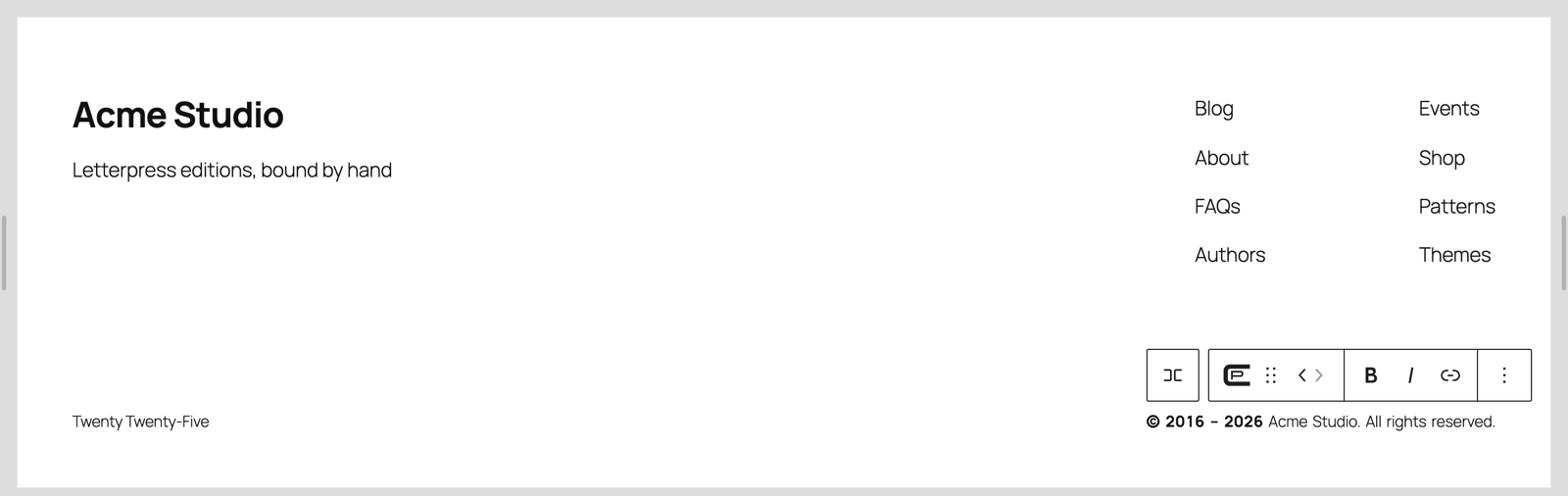
Footer template parts are a block-theme feature. A classic theme has none to edit, so there the block goes wherever you edit content directly.
The copyright holder
The name is typed straight into the block, not into a field in the sidebar. Click the block and type.
Left blank, the notice uses your site title — and keeps using it. Rename the site in Settings → General and every notice follows, with nothing to re-edit. The site title is shown as placeholder text while the field is empty; it is never written into the block, which is why renaming the site is enough. Type a name only when it needs to differ from the site title.
The name accepts bold, italic and links, so a notice can point at a company page.
Block settings
Select the block and open the Settings tab in the editor sidebar.
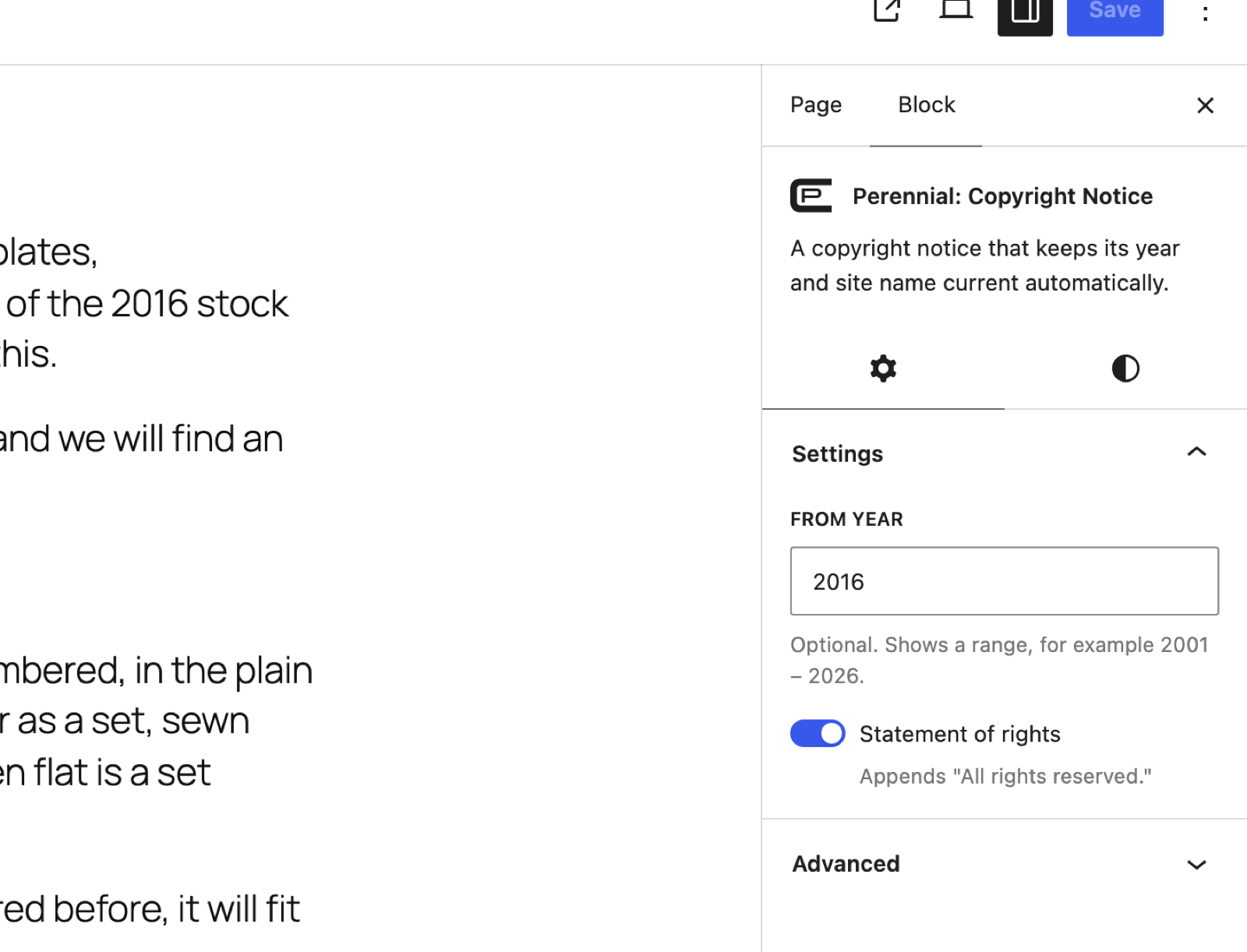
From year
Optional. Enter a year and the notice reads as a range — © 2016 – 2026 — where the end is
always the current year. Leave it blank for a single year.
The field takes digits only, up to four of them. It does not check that the year makes sense, though — a start year later than the current one reads as a backwards range. Setting it to the current year shows that year on its own rather than a range of one year.
The format is translatable, so a locale can set its own separator, numerals or placement for the © symbol.
Statement of rights
A toggle. When it is on, the notice appends All rights reserved. after the name.
Punctuation is handled for you: the full stop after the name is added only when this toggle is on, and never doubled if the name already ends in one.
Styles
Select the block and open the Styles tab. The year — and the © symbol that leads it — can be styled separately from the rest of the line, so the year can carry a footer without the whole notice shouting.
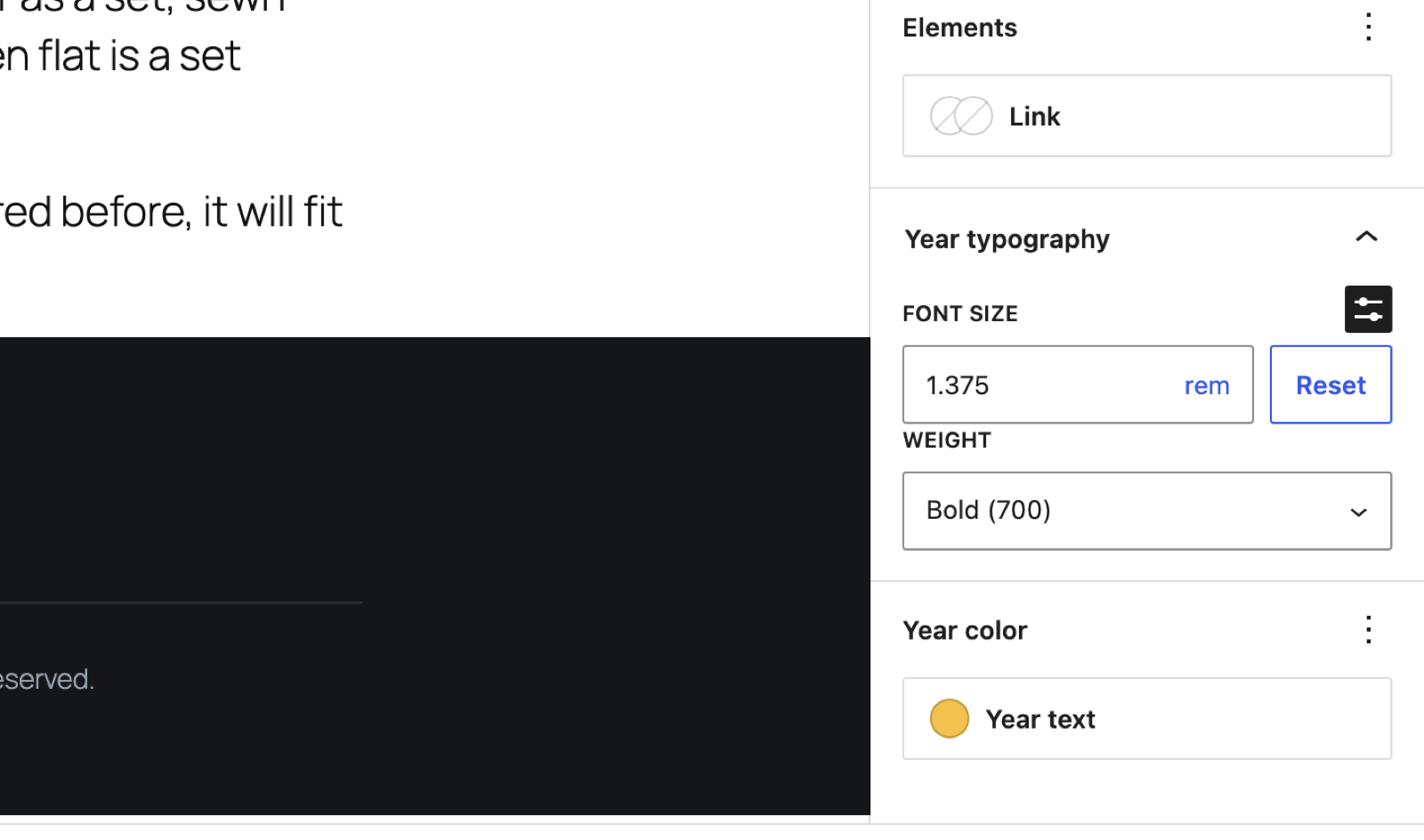
Year typography
Sets the year's own font size and weight, independently of the rest of the notice.
A custom size is entered in rem, em, ch or % rather than pixels, so the notice keeps
scaling with your theme's type scale and with a reader's own text-size settings. One of your
theme's preset sizes keeps whatever units the theme declares.
Weight runs Default · Light (300) · Regular (400) · Medium (500) · Semi-bold (600) · Bold (700), with Default leaving it to the theme.
Year color
One control, Year text, setting the year's own color.
Choosing one of your theme's preset colors keeps the year tracking the palette — change the palette later and the year changes with it. A custom color is a fixed value and does not track the palette.
When the block has its own background color set, the editor checks the year against it as you pick and warns when the contrast is too low to read.
Everything else
Alignment, text and background color, link color, margin and padding, and font size and line height for the rest of the notice come from the standard WordPress block controls, so it inherits your theme rather than fighting it.
Why the year is always right
The notice is worked out when the page is served, not when you save the post. Nothing about the year is stored in your content, so a saved post can never carry a stale year, and there is nothing to do on 1 January.
The year resolves in your site's timezone, as set in Settings → General — not in the visitor's browser. Readers in Auckland and Los Angeles therefore never see different years for a few hours around New Year.
Because the text is finished on the server, search engines see the notice in the page source with no JavaScript to run first. The block loads no JavaScript on the front end at all, on any theme.
On WordPress 6.9 and later its stylesheet loads only on the pages that actually use the block, on any theme. On 6.4 to 6.8 that holds for block themes; a classic theme there loads every registered block's stylesheet on every page, this one included.
Caches
A full-page cache stores the finished HTML, year and all. A page cached on 31 December can keep serving last year's notice until that cache is cleared.
So the plugin clears it, on four caching plugins by name: WP Rocket, W3 Total Cache, WP Super Cache and LiteSpeed Cache. Those four, and no others.
The clearing does not happen at midnight, because a cached page is served without WordPress ever loading this plugin. It happens on the first request of the new year that WordPress actually builds rather than serving from cache — a page view, an admin screen, a REST call or a crawler. On a quiet, heavily cached site that can be a while after New Year.
Each of the four is asked for a full flush. On W3 Total Cache and LiteSpeed that reaches past the page cache and clears their object caches too. It happens once a year, and it is deliberate.
There is no scheduled task. The only thing the plugin stores is the year it last saw, which it compares against on each request.
Any other cache: if it expires at least once a year, it corrects itself the next time it expires — which with a twelve-month lifetime can be most of a year. With very long or indefinite lifetimes, clear your page cache once after New Year, or set your caching plugin to purge on a schedule.
Clearing a cache of your own
Two hooks fire on that same first request of the new year. Neither fires on a brand-new install, which has no previous year on record to compare against.
add_action( 'ghostlabs_perennial_year_rolled_over', function ( $current, $stored ) {
    // Clear your own cache, CDN or host layer here.
}, 10, 2 );
The action fires whether or not the plugin clears anything itself. To keep the action but skip the built-in purging:
add_filter( 'ghostlabs_perennial_purge_on_rollover', '__return_false' );
External services
Perennial contacts no external services. It makes no network requests of any kind — no license check, no update check of its own, no analytics, no telemetry, no remote fonts or assets. Nothing about your site or your visitors leaves your server because of it.
The cache clearing above is not an exception: it calls those plugins in PHP on your own site, if they happen to be installed. That is a function call inside WordPress, not a request to anybody.
Source
The editor bundle ships compiled. The sources are at github.com/theghostlab/wp-ghostlabs-perennial.
Requirements
- WordPress 6.4 or later, tested up to 7.1
- PHP 7.4 or later
Getting help
The Help Center has contact details.