
PCH Boat Listings gives each boat its own listing in WordPress. It comes in two editions: PCH Boat Listings Pro, and PCH Boat Listings Flagship, which is everything in Pro plus buyer inquiries, PDF brochures, marine filters with radius search and a map, a loan calculator and the Concierge layout.
This page has three parts. Pro and Flagship covers everything both editions do. Pro covers moving from Pro to Flagship. Flagship covers what Flagship adds. The bar at the top of the page always shows which part you are reading.
Pro and Flagship
Everything in this part works the same in PCH Boat Listings Pro and PCH Boat Listings Flagship.
Which edition you have
The Plugins screen lists the plugin as PCH Boat Listings Pro or PCH Boat Listings Flagship. Its settings page, under Settings → PCH Boat Listings, names the edition in its title too.
Requirements
- PHP 8.3 or newer
- WordPress 6.8 or newer
Checking your PHP version
Both editions need PHP 8.3 or newer. You can see your site's PHP version in WordPress under Tools → Site Health → Info → Server, before you buy.
If it is older, ask your host to upgrade it to PHP 8.3 or newer. Some hosts let you change the version yourself in their control panel. WordPress won't activate PCH Boat Listings on an older version, and if a host moves the site back to an older version later, the plugin stops with an error until PHP 8.3 or newer is back.
Installation
- Download the zip for your edition from the Licenses page in your GhostLabs account.
- Upload it from Plugins, under Add Plugin → Upload Plugin, then activate it.
- Enter your license key under Settings → PCH Boat Listings, on the Licenses tab, in the License Key field, and click Save Changes.
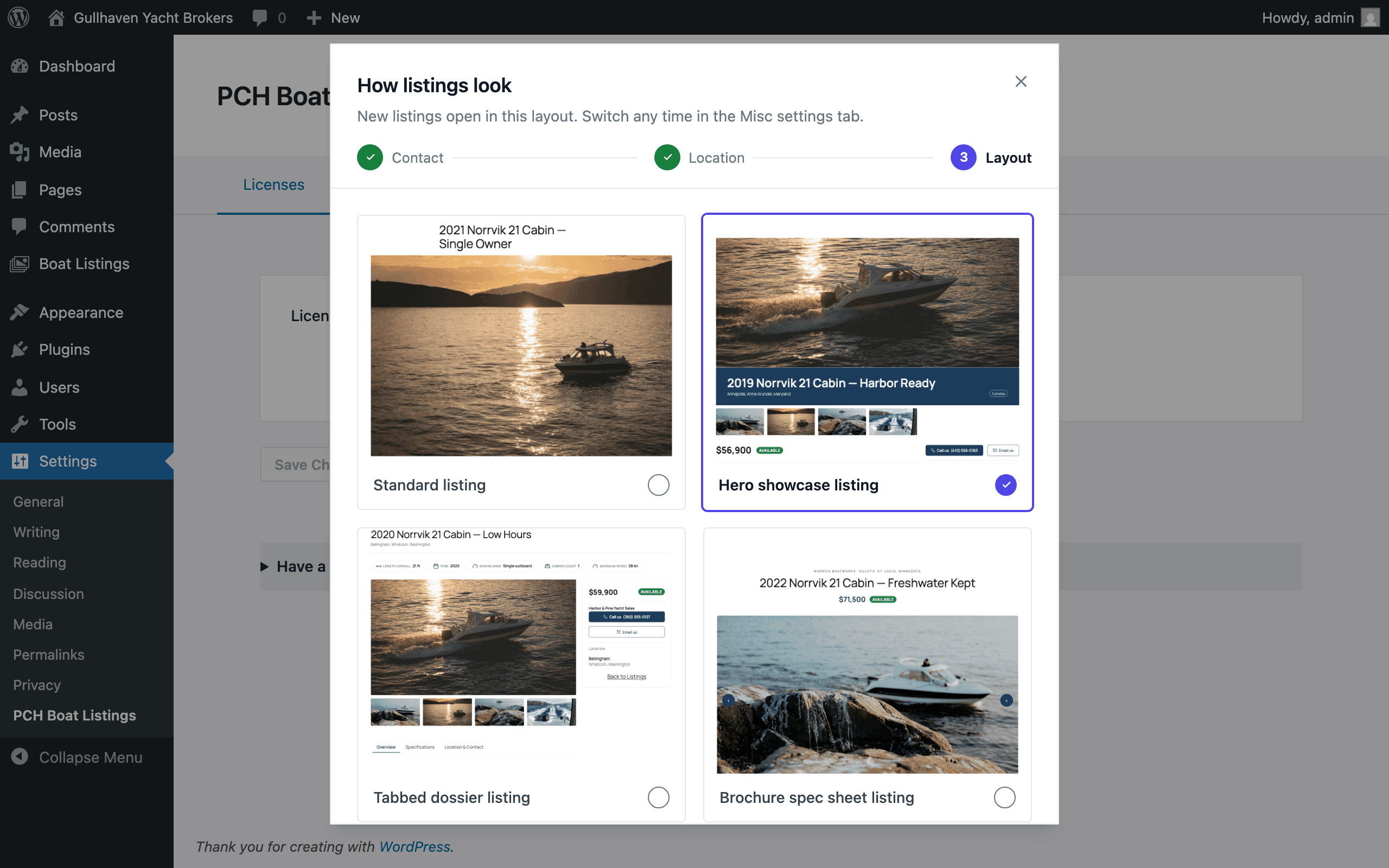
- A short setup then walks you through your contact details, your location and the layout new listings start from.
- Add your first boat from the Boat Listings menu.
Already running Pro? Upgrade to Flagship from Pro's settings page instead: see Moving to Flagship, in the Pro part below. Every listing and setting stays where it is.
First-run setup
Once your license key is saved and valid, a short setup opens on the settings page. It starts with Welcome aboard and Get started, then takes three steps, moving on with Continue:
- Contact (How buyers reach you): the phone number and email address listings show.
- Location (Where your boats are): the location listings start from.
- Layout (How listings look): the layout new listings open with.
The last screen, You're all set, sums up what you chose, and Finish setup closes it. I'll do this later, on the opening screen, or the close button on any screen puts it away. It comes back the next time you open the settings page in a new browser tab, until you finish it. Everything in it is also on the settings tabs below.
Settings
The settings page is under Settings → PCH Boat Listings. Each tab has its own save button.
Licenses
The License Key field and Save Changes. Once a key is saved, the field shows only its last four characters: "A key ending in … is saved. To replace it, enter the full new key." The tab says License Active or License Inactive. In Pro, this tab also carries the move to Flagship.
Post Type
- URL slug: the address your listings live under. It starts as
boats, so the archive is at/boats/and a listing at/boats/<listing>/. - Singular label and Plural label: what WordPress calls a listing, in the menus and on screen.
- Sticky sidebar: Keep the single-view sidebar fixed while scrolling.
- Taxonomies: add your own with Add taxonomy, each with a Key, a Label and, if it
should nest like categories, Hierarchical. A key WordPress already uses for something else is
saved with
_listingadded to it.
Save with Save Post Type Settings.
Contact
The site-wide contact details every listing inherits: Contact heading, Phone label, Phone number, Email label and Email address. Save with Save Contact Settings.
When you change them, the tab asks "Apply the new defaults to all previous listings?". Update all existing listings applies them now, replacing any set on individual listings. Only new listings leaves existing listings alone, which is safe: a listing whose contact details you never changed already follows the site-wide ones.
Location
The site-wide address every listing inherits: Country, State / Province, City, County and Postal code. Save with Save Location Settings. A change asks "Apply the new address to all previous listings?", with the same two choices as Contact.
Misc
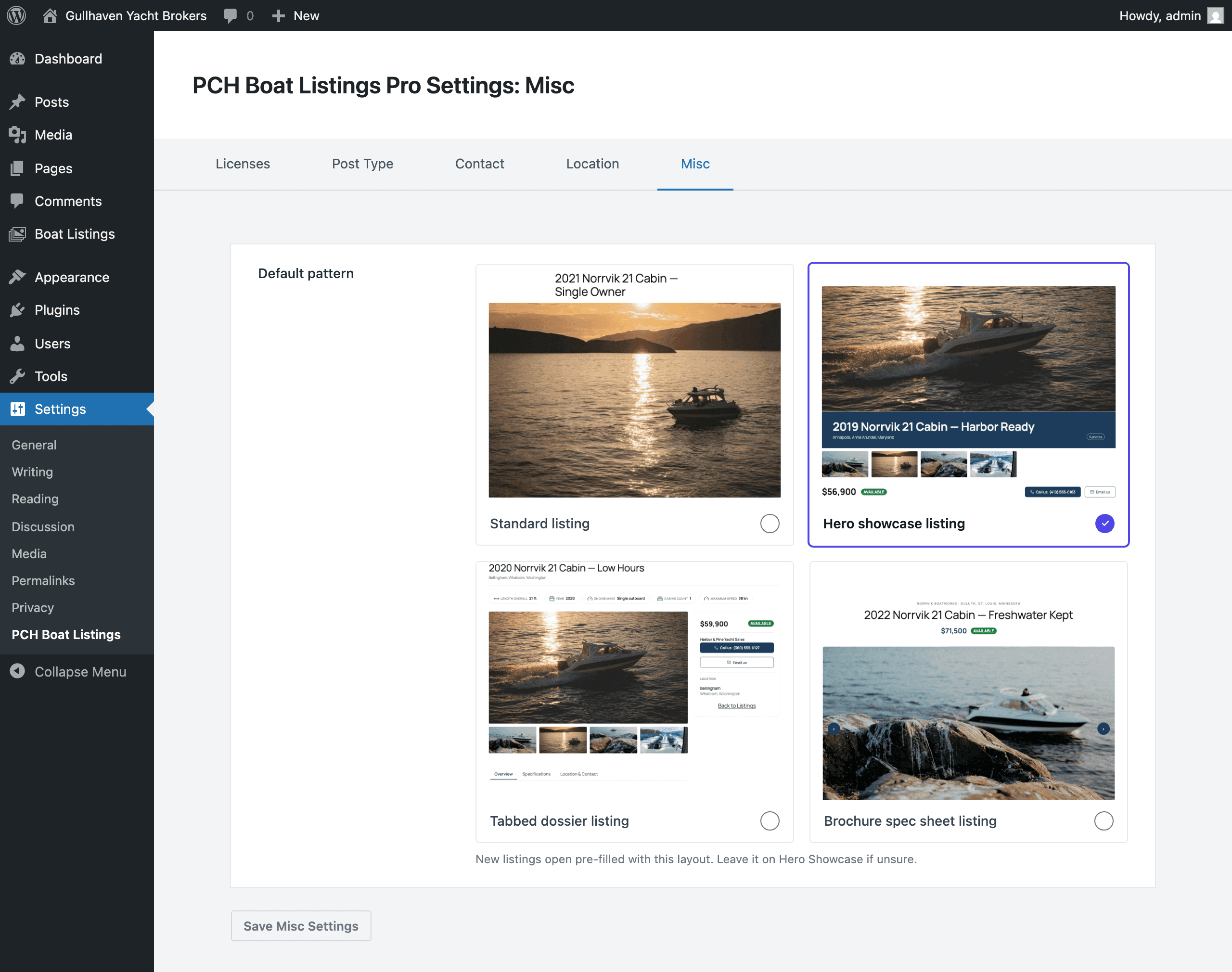
Default pattern sets the layout new listings open with, from a card for each: Standard listing, Hero showcase listing, Tabbed dossier listing and Brochure spec sheet listing (and, in Flagship, Concierge listing). Save with Save Misc Settings.
Saving a new one asks "Rebuild all previous listings on this layout too?". Update all existing listings rebuilds them: it moves each listing's photos, description, specifications and highlights into the new layout, and anything added outside those sections is removed. Only new listings leaves existing listings as they are.
Adding a boat
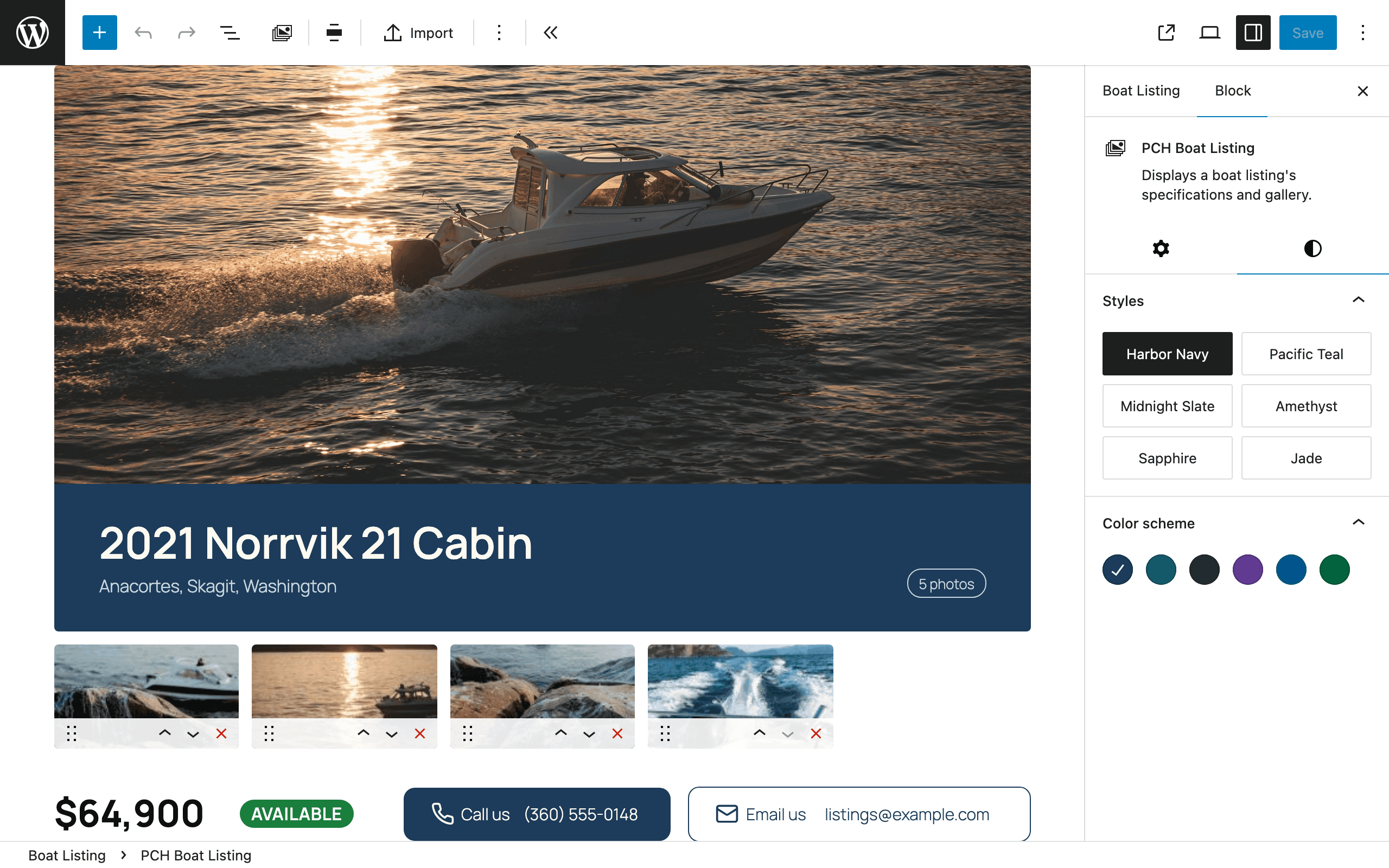
Add a listing from the Boat Listings menu. Type the boat's name where the editor says Add Boat Name. The listing opens already laid out in your Default pattern, as a PCH Boat Listing block holding the listing's detail blocks.
There is no settings panel to fill in: you edit the gallery, the price, the status, the specifications, the contact details and the location where they sit on the page. The price, the status, the contact details and the location are stored once for the listing, so every block that shows them agrees.
The four layouts
- Standard: a sticky sidebar with the featured image beside a highlights strip, the gallery, the main content and the details.
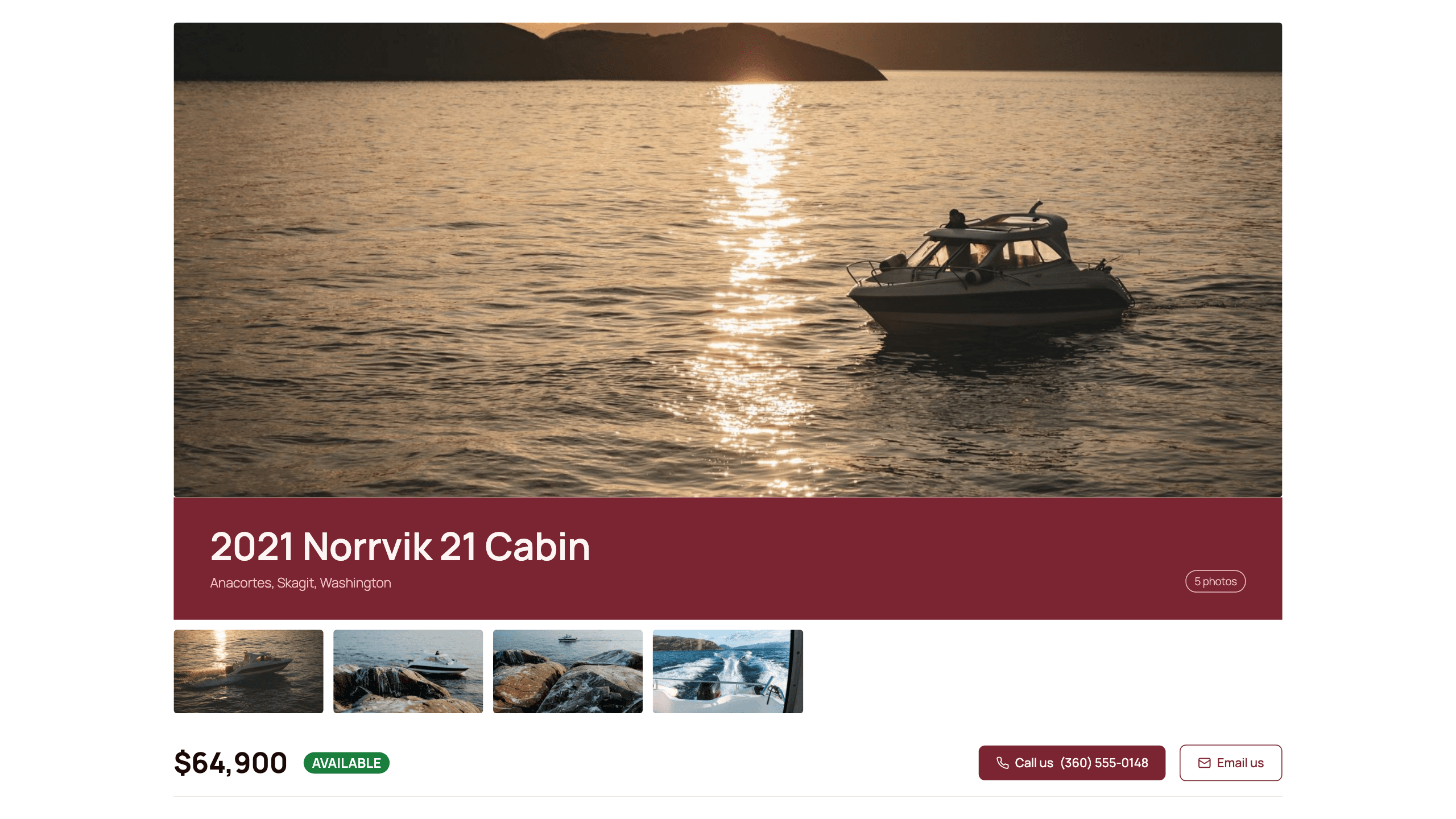
- Hero showcase: a wide lead photo with the title, location and photo count over it, a sticky action bar, an About section, highlights, the full specifications and a closing contact band, with the map once the listing has been located.
- Tabbed dossier: highlight chips, the gallery and three tabs, Overview, Specifications and Location & Contact, beside a compact summary rail. On phones, a contact bar.
- Brochure spec sheet: a magazine-style masthead with the price, a photo carousel, a band of key figures, an About section, contact and location cards, grouped specifications, and a slim masthead bar that appears as the reader scrolls.
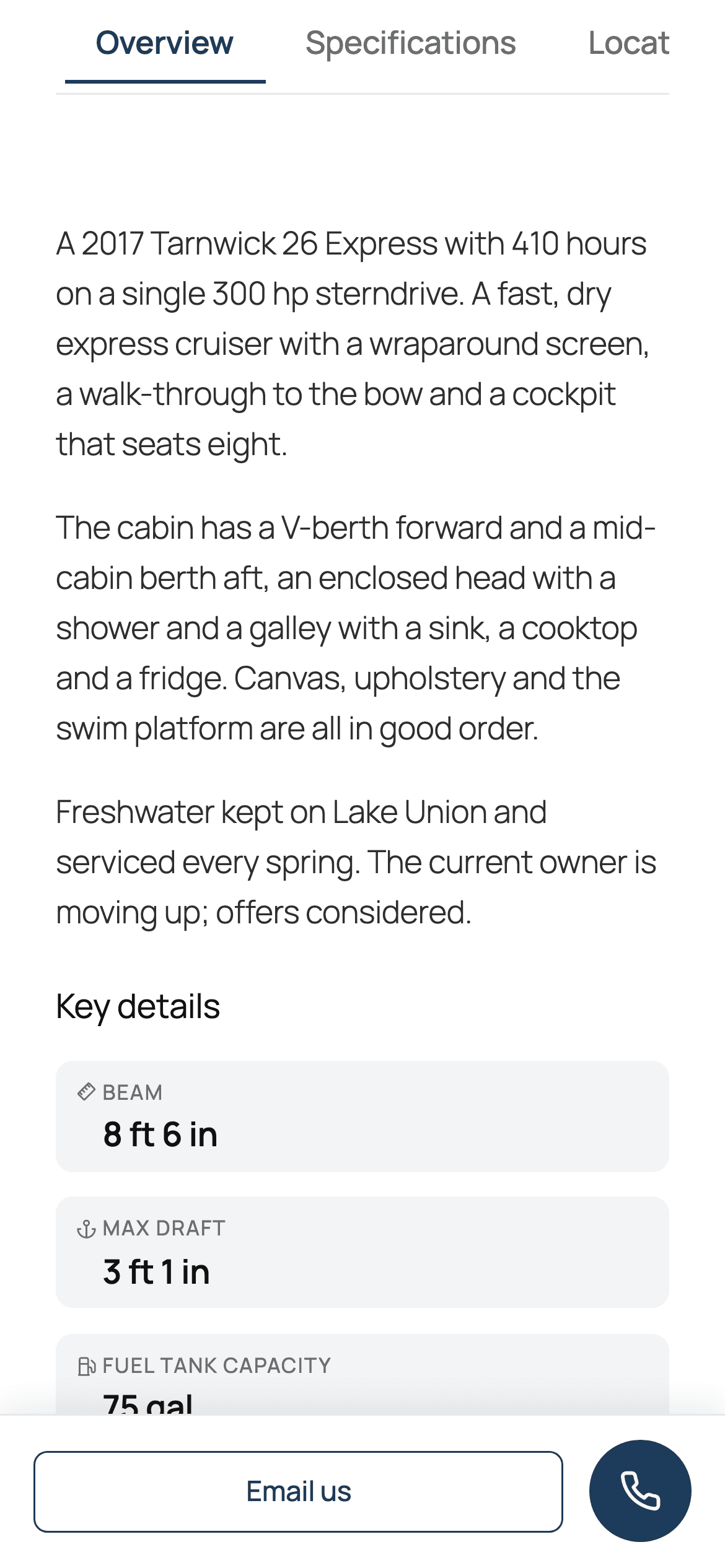
Preview or edit fields
Select the PCH Boat Listing block, and in the sidebar's Layout panel, Detail blocks switches the listing between Preview, which shows the detail blocks close to how they look on the site, and Edit fields, which shows their inputs.
Color schemes
The listing block's Color scheme panel offers six: Harbor Navy (the default), Pacific Teal, Midnight Slate, Amethyst, Sapphire and Jade. Flagship adds three more, described in the Flagship part.
The listing's blocks
Each block is named in the inserter as PCH Boat Listing: followed by what it holds.
Gallery
Add media picks photos from your Media Library, and Add video URL adds a YouTube or Vimeo video beside them. Drag items to reorder them. Select an item for its Gallery item panel: Replace, Edit (to crop it) and Caption.
The Layout panel sets Columns (Auto, or 3 to 5) and Show captions. In the Hero showcase and Brochure spec sheet layouts it also offers Slideshow, with Auto play and Seconds per photo, from 2 to 15. On the site, a photo opens in a lightbox with its caption, and the arrow keys move through the gallery.
Price and Status
Price takes the asking price and a Currency: USD, EUR, GBP, CAD or AUD. Type digits only; the grouping is added for you. Status is Available, Pending or Sold.
Specifications
Add specifications opens a searchable catalog of boat fields, such as beam, draft, engines, cabins and tanks, grouped by category. Search with Search specification fields, pick fields one at a time or with Add Entire Section, then click Add specs. In the Standard layout a new listing starts with the boat's name, company and year in place; the other layouts start empty, ready for Add specifications.
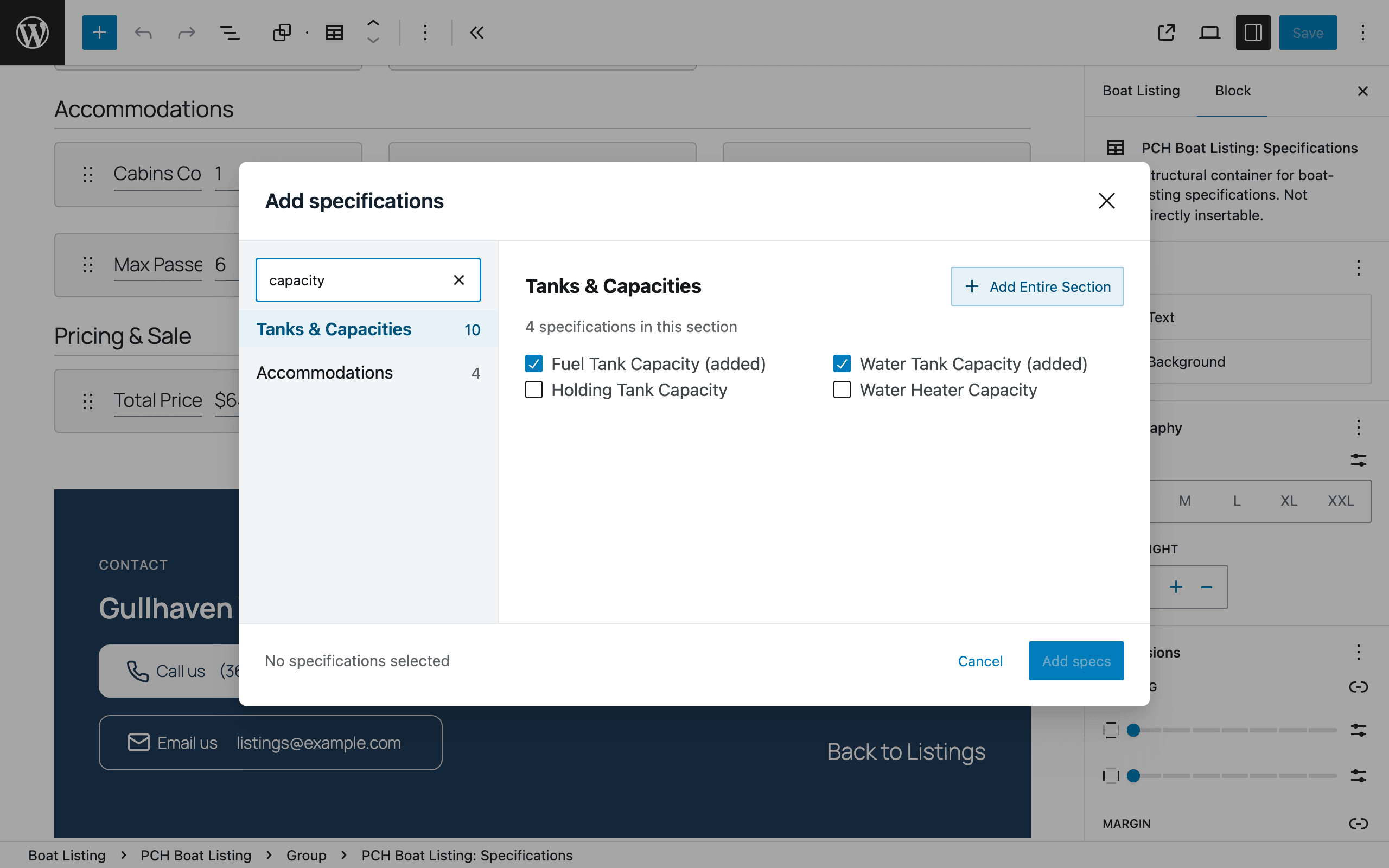
Added fields gather into a section for their category. A Specification Section block can be renamed, has Add specs and Add section in its toolbar, and sets its Columns (Auto, or 2 to 4) in its Layout panel. Reorder specifications by dragging, or with the arrow buttons from the keyboard.
- Specification Highlight spotlights one specification, chosen in its Specification field. Its toolbar's Inline button switches it between sitting in a line of text and standing on its own.
- More Details shows a chosen set of specifications. Add a spec searches the full catalog, and the ones you pick appear under Highlighted specs.
Description, Contact, Location and Back to Listings
- Description: the boat's write-up.
- Contact: the listing's phone and email, taken from the site-wide Contact settings until you change them on the listing.
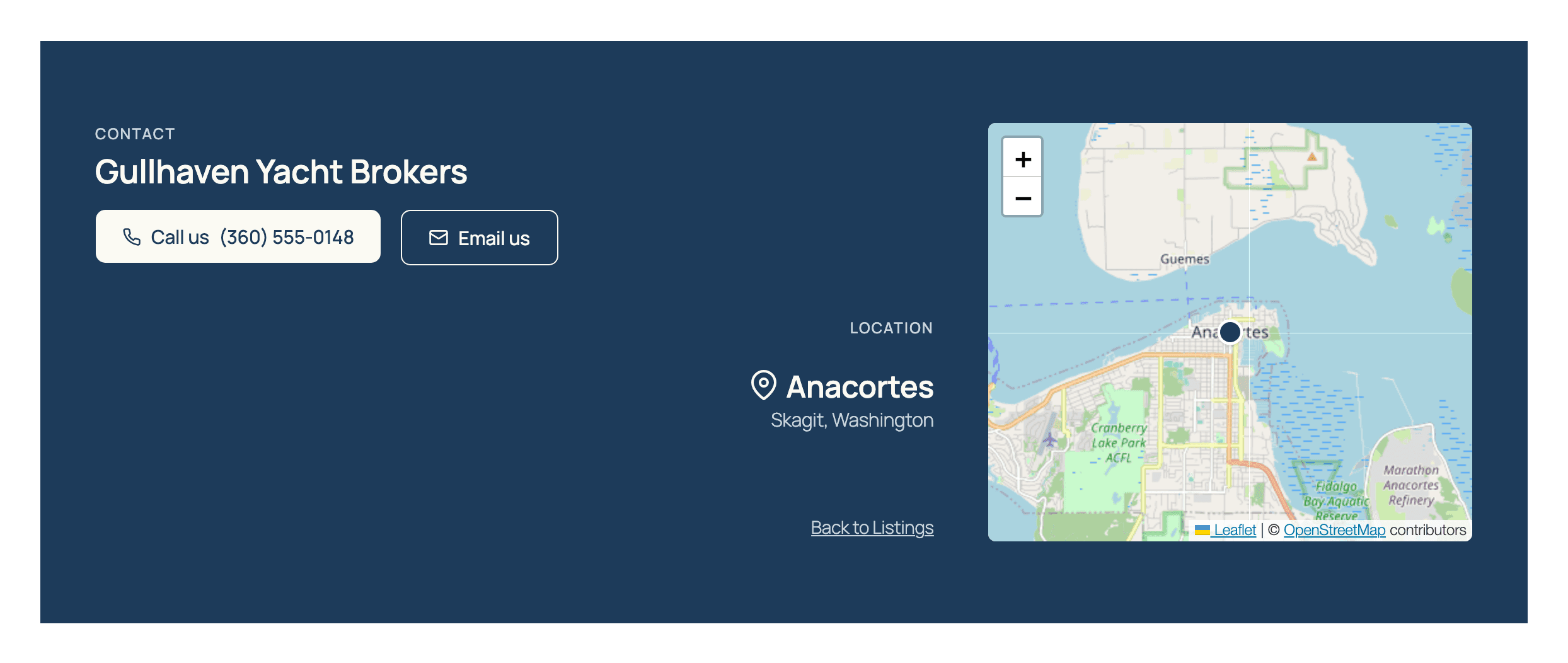
- Location: Country, State (or State/Province outside the United States), City, County and Zip Code or Postal Code, taken from the site-wide Location settings until you change them. Once the listing has been located, it shows a map.
- Back to Listings: a link back to the archive.
Importing a listing
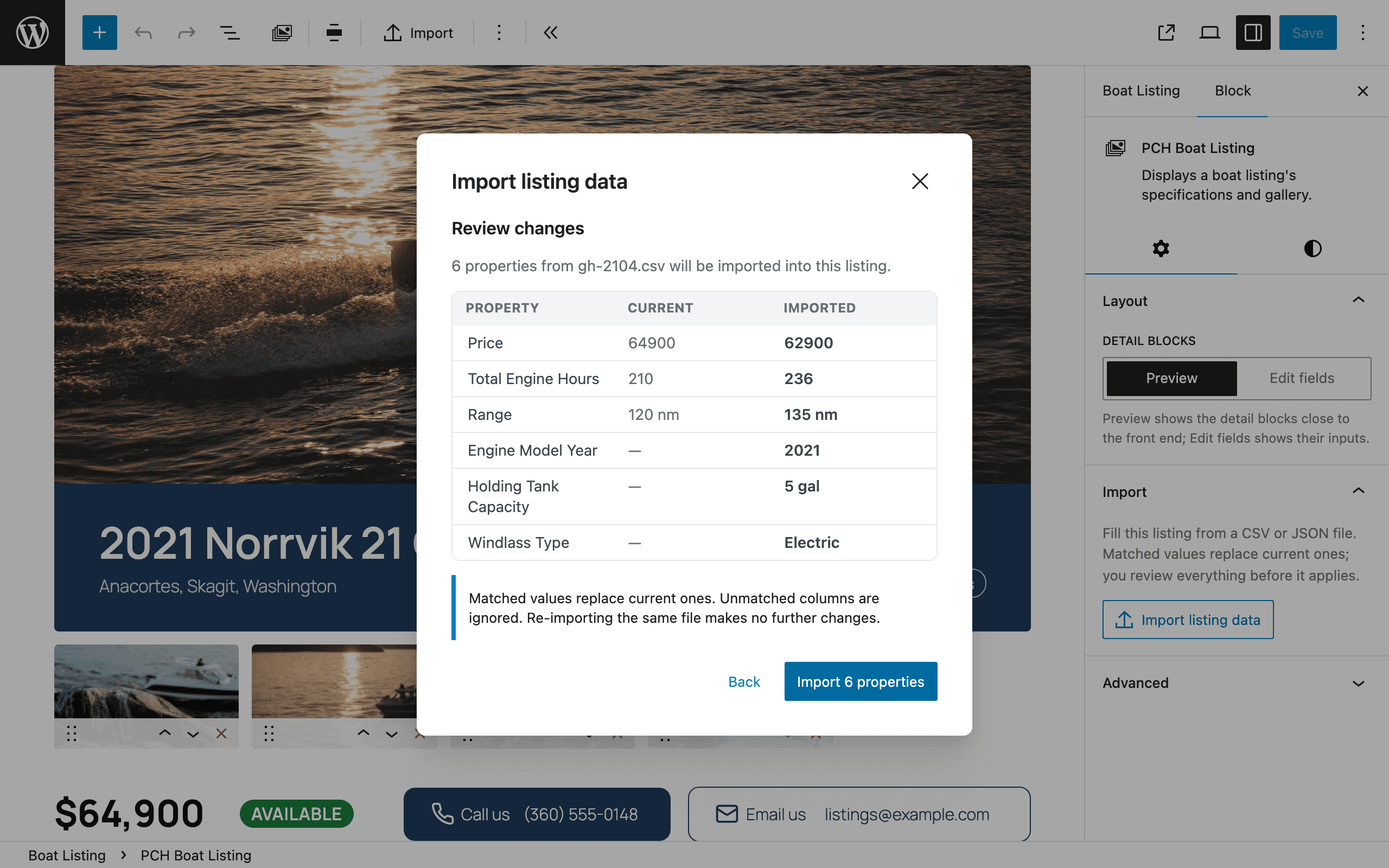
You can fill a listing from a CSV or JSON file instead of typing it in. Select the PCH Boat Listing block and click Import in its toolbar, or Import listing data in its Import panel.
- Choose a file: one listing per file, CSV or JSON. Download a sample CSV gives you a file to start from. A two-column CSV with a property and a value on each row works too.
- Choose a listing: if the file holds more than one, pick the row.
- Match columns: columns matched automatically are marked Matched. Anything under Needs attention is matched by hand: pick a property from the Choose property… list and click Match, or pick Ignore this column.
- Review changes: every change, with what the listing holds now (Current) beside what the file brings (Imported). Nothing applies until you click Import n properties.
An empty cell never blanks what is already there, and importing the same file again changes nothing more. The whole import undoes in one step with Undo. A description arrives as plain text.
The archive
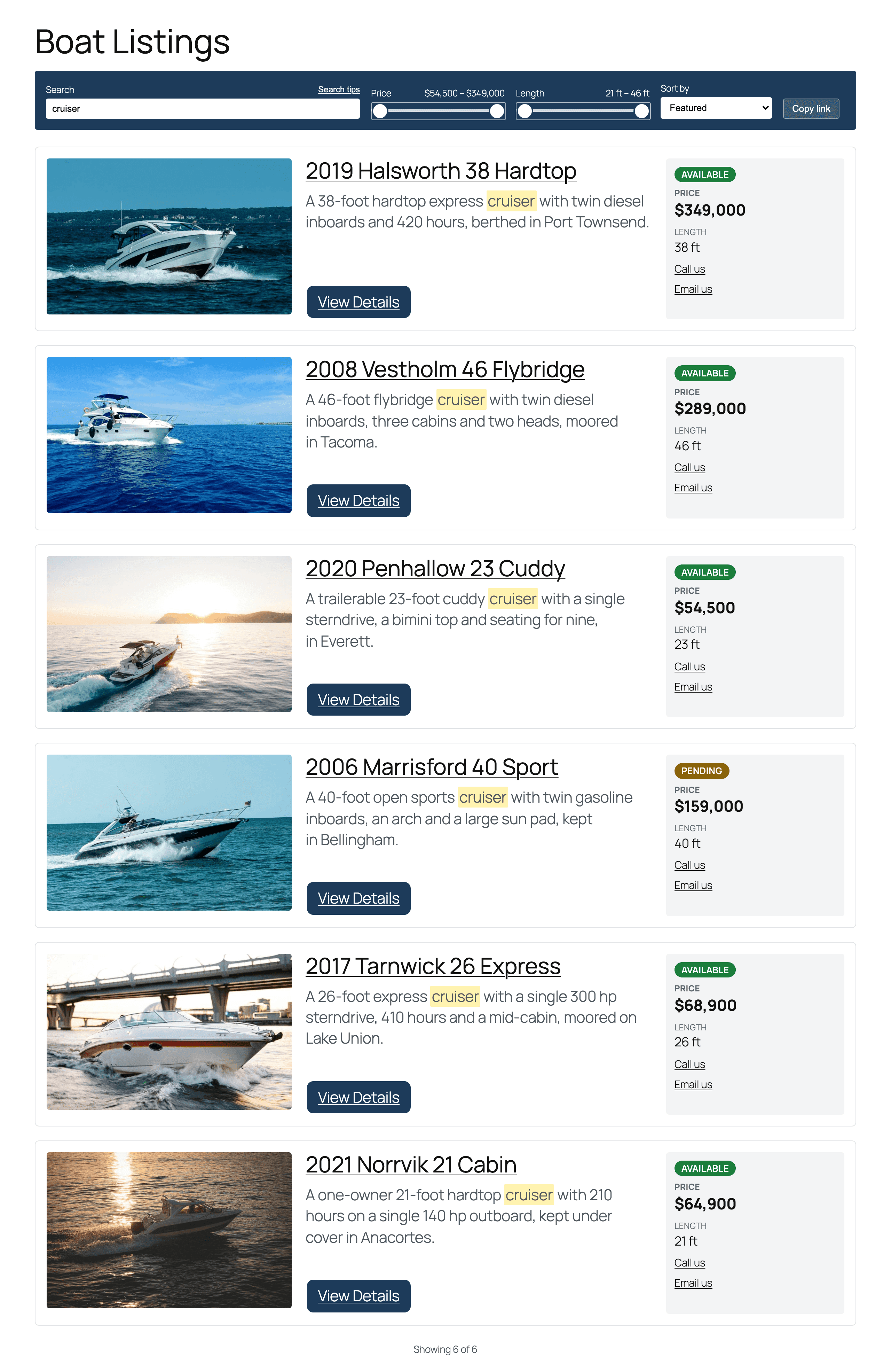
Every published listing appears as a card on the archive page, at your URL slug (/boats/
unless you changed it), with its photo, an excerpt, its status, price, length and contact links.
Password-protected listings stay off it.
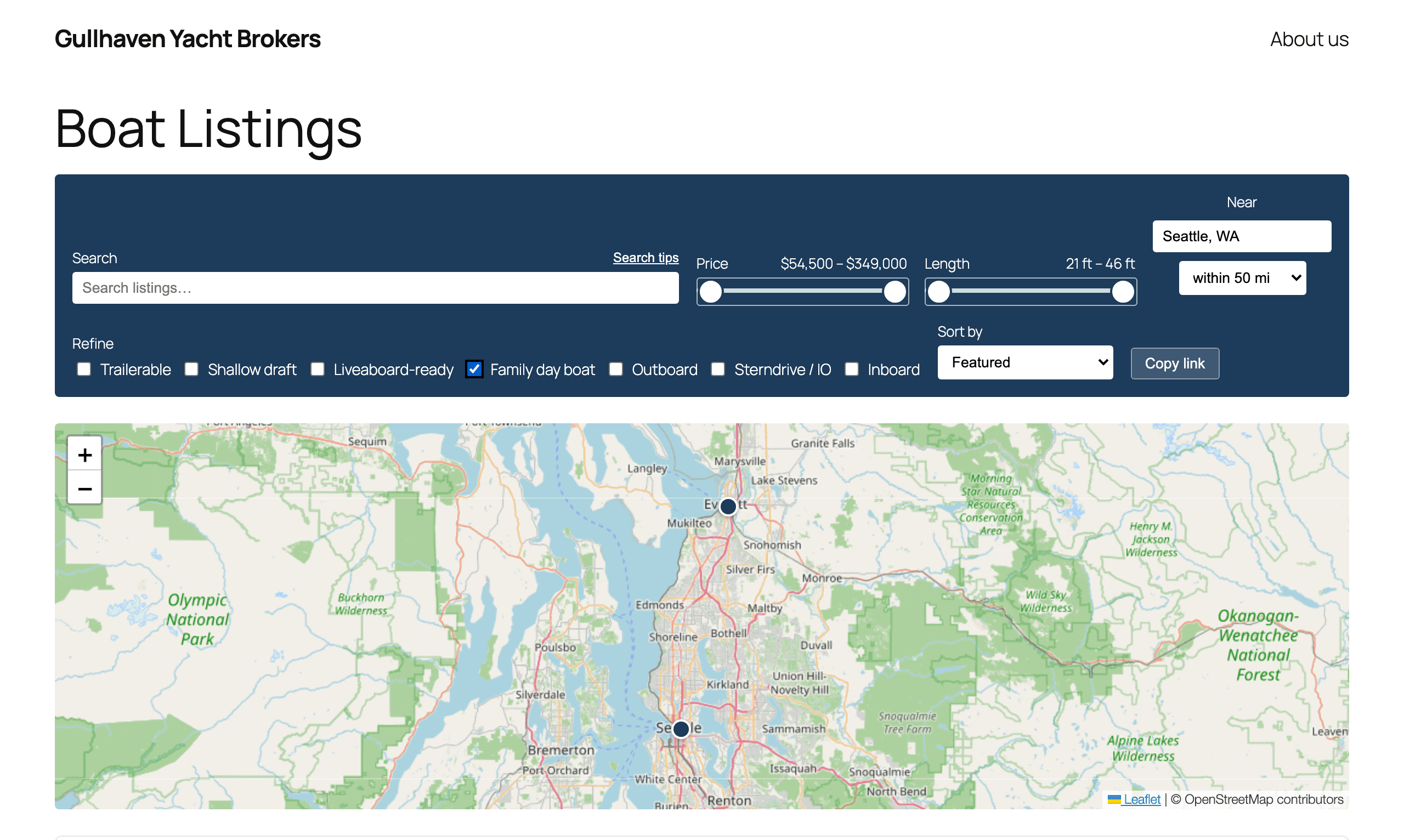
- Search finds listings by approximate match and highlights the hits. Search tips explains exact matches, excluding a word, either of two words and words that start with something.
- Price and Length are two-handled sliders.
- Sort by: Featured, Price: low to high, Price: high to low, Length: short to long, Length: long to short or Title: A–Z.
- Load more shows twelve more listings at a time.
- The filters are kept in the page's address, and Copy link copies it, so you can send someone the same filtered view.
Maps
When you save a listing whose location has changed, PCH Boat Listings looks it up in the background with OpenStreetMap's Nominatim service, then shows a map of it in every layout. Neither needs an API key or an account. If the full location isn't found, it tries the city, state and country, then the postal code and country.
On the site, the map pans and zooms from the keyboard, the scroll wheel scrolls the page rather than zooming the map, and the map respects a visitor's reduced-motion setting. The OpenStreetMap credit stays on the map.
Search engines
For each listing, PCH Boat Listings publishes a meta description (the listing's excerpt, or a sentence made from its details), Open Graph tags (the gallery's first photo, or the featured image if there is none) and Product structured data, with the price, availability and location when the listing has a price. A password-protected listing publishes none of these.
When Yoast SEO, Rank Math, All in One SEO or SEOPress is active, all of this steps aside so nothing is printed twice, and the listing's structured data is then up to that plugin.
Updates and your license
PCH Boat Listings updates from the Plugins screen like any other plugin. Each license covers the number of sites you bought it for. If it lapses, the plugin keeps working: every listing, layout and setting stays. Only updates stop until the license is renewed.
Your data
Deleting PCH Boat Listings from the Plugins screen leaves your listings and your settings in place. Install it again and they are all still there.
External services
The GhostLabs license server (enter.theghostlab.io). To check your license and offer updates, the plugin sends your license key, your site's domain name, and the plugin's name and edition. Like WordPress's requests by default, it also carries your WordPress version and your site's address. Nothing about your visitors is sent.
OpenStreetMap's Nominatim service (nominatim.openstreetmap.org). When a listing's location changes, your site sends its location fields to Nominatim to find it on the map, at most one request a second. It does the same when the site-wide Location changes, because listings fill their empty location fields from it. Each request also carries your site's address and the plugin's version. Nominatim's usage policy applies.
OpenStreetMap's map tiles (tile.openstreetmap.org). A visitor's browser loads the map images for a listing's map from OpenStreetMap, and in Flagship those for the archive map too, from a.tile.openstreetmap.org, b.tile.openstreetmap.org and c.tile.openstreetmap.org. Its tile usage policy and the OpenStreetMap Foundation's privacy policy apply.
Flagship adds two more, both described in the Flagship part: radius search, which sends the place a visitor types to Nominatim from your site, and the inquiry webhook, which sends each inquiry to an address you choose.
For developers
Public filters:
ghostlabs_pch_boatlistings_seo_tags: force the plugin's own SEO output on or off, whatever SEO plugin is active.ghostlabs_pch_boatlistings_geocoder_endpoint: look locations up with your own Nominatim instead.ghostlabs_pch_boatlistings_allowed_blocks: the block types the listing editor allows.ghostlabs_pch_boatlistings_listing_patterns: the listing layouts.ghostlabs_pch_boatlistings_color_schemes: the color schemes on the listing block.ghostlabs_pch_boatlistings_card_cacheandghostlabs_pch_boatlistings_card_cache_variant: extra data on the archive's cache of each listing's card.ghostlabs_pch_boatlistings_archive_facetsandghostlabs_pch_boatlistings_archive_geo: the archive's filter chips, and its radius search and map. Both editions apply them; Flagship is what fills them.
Pro has the action ghostlabs_pch_boatlistings_upgrade_event, which runs once for each attempt to
move to Flagship, whatever the outcome. It never carries the license key.
Flagship adds the filters ghostlabs_pch_boatlistings_loan_disclaimer,
ghostlabs_pch_boatlistings_inquiry_webhook, ghostlabs_pch_boatlistings_inquiry_retention_days,
ghostlabs_pch_boatlistings_inquiry_allowed_origins (addresses besides your site's own that may use
the inquiry form), ghostlabs_pch_boatlistings_inquiry_site_limit (the site-wide limit on
inquiries) and ghostlabs_pch_boatlistings_inquiry_trusted_proxies, which a site behind a load
balancer or CDN needs, so the per-visitor limit sees each visitor's own address. It also adds the
action ghostlabs_pch_boatlistings_inquiry_created, which runs after an inquiry is stored.
Each layout's marker class, and is-standard-pattern, are stable selectors for your theme's CSS.
Getting help
The Help Center has contact details.
Pro
Everything in this part is about PCH Boat Listings Pro.
Moving to Flagship
Pro and Flagship read the same listings and settings, so moving to Flagship moves nothing: every listing and setting stays where it is, and the key you enter becomes the site's key.
The upgrade is offered to a user who can manage the site's settings and install and activate plugins, where WordPress allows file changes and can write files directly. Otherwise the key field doesn't appear, and Pro says what to do instead.
On a subscription, upgrade from the Licenses page in your GhostLabs account, where you pay only the difference for the rest of the billing period. Then, in WordPress:
- Go to Settings → PCH Boat Listings, on the Licenses tab.
- Open Have a Flagship license? and enter your Flagship key in Flagship license key. After an upgrade in your account, that is the key you already have.
- Click Upgrade to Flagship.
Between the upgrade in your account and step 3, Pro's Licenses tab may say "This license key is for another edition of PCH Boat Listings.", and Pro's updates stop. That is expected: the key is a Flagship key now, and it counts again once Flagship is installed.
Pro checks the key, installs Flagship in its place and switches over. Flagship then confirms: "PCH Boat Listings Flagship is now active." Pro is left deactivated, and you can delete it from the Plugins screen whenever you like.
On a one-time license, ask for a refund within the 30-day money-back window and buy Flagship instead. After that, Flagship is a separate purchase.
If Pro tells you the upgrade can't run on your site, its message says what to do instead: usually, download Flagship from your account and install it yourself, or ask whoever manages the site to install it.
Flagship
Everything in this part needs PCH Boat Listings Flagship.
What Flagship adds
- Buyer inquiries on the listing, saved in WordPress before the email goes out.
- PDF brochures, each at its listing's own address.
- Marine filters on the archive, worked out from each listing's specifications.
- Radius search and a map on the archive.
- A marine loan calculator, worked out in the visitor's browser.
- The Concierge layout, and three more color schemes.
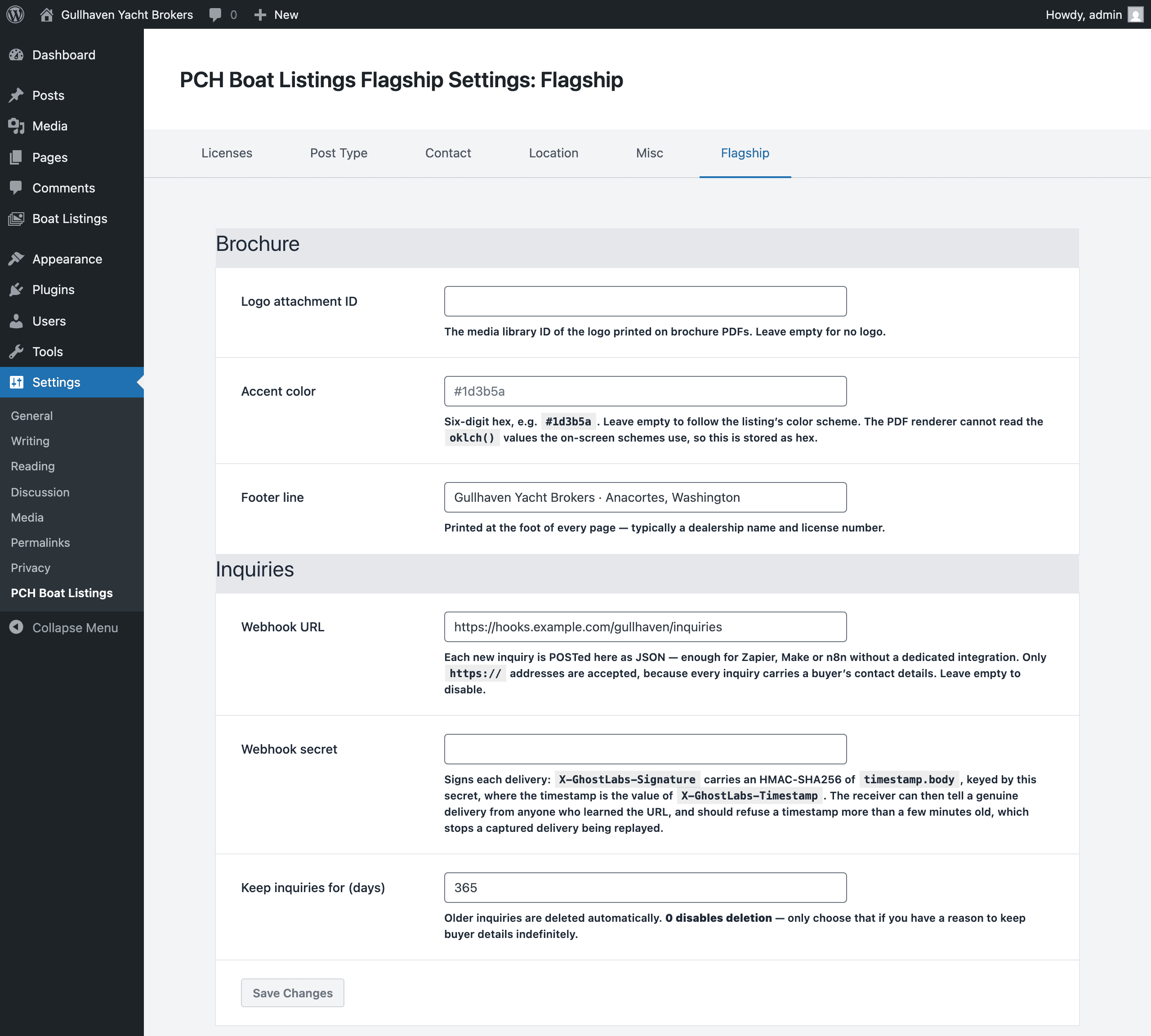
- A Flagship tab on the settings page.
Buyer inquiries
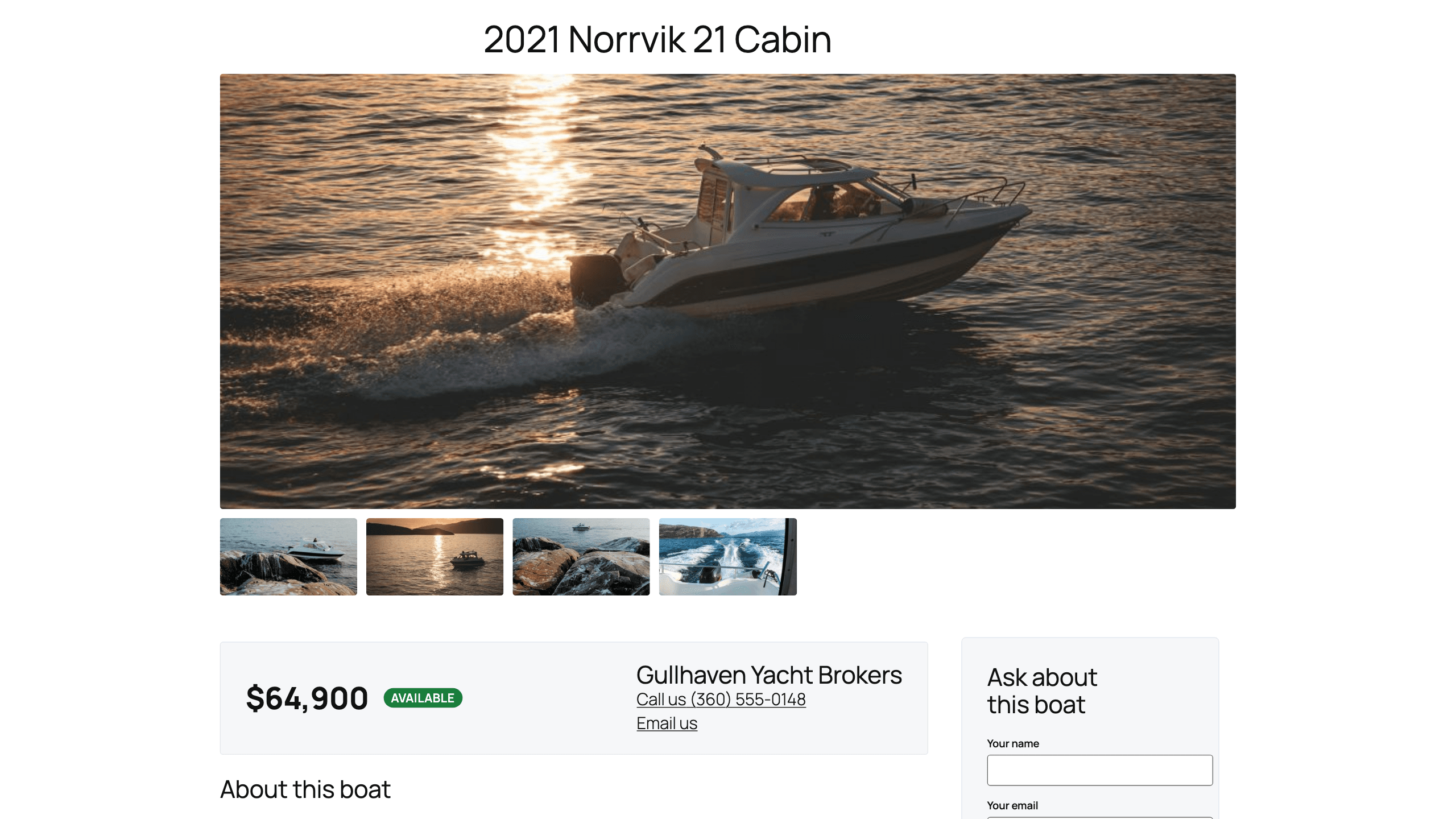
Add the PCH Boat Listing: Inquiry Form block to a listing (the Concierge layout already has one). Visitors see Ask about this boat with Your name, Your email, Your phone (optional) and Message, and a Send inquiry button. In the block's Fields panel you can turn the Phone field and Message field off and change the Button text.
Where inquiries go
Each inquiry is saved in WordPress first, then emailed to the listing's contact address, or to your site-wide contact address when the listing has none, so a failed email never loses one. If neither has an address, the inquiry is saved but not emailed.
The Inquiries screen
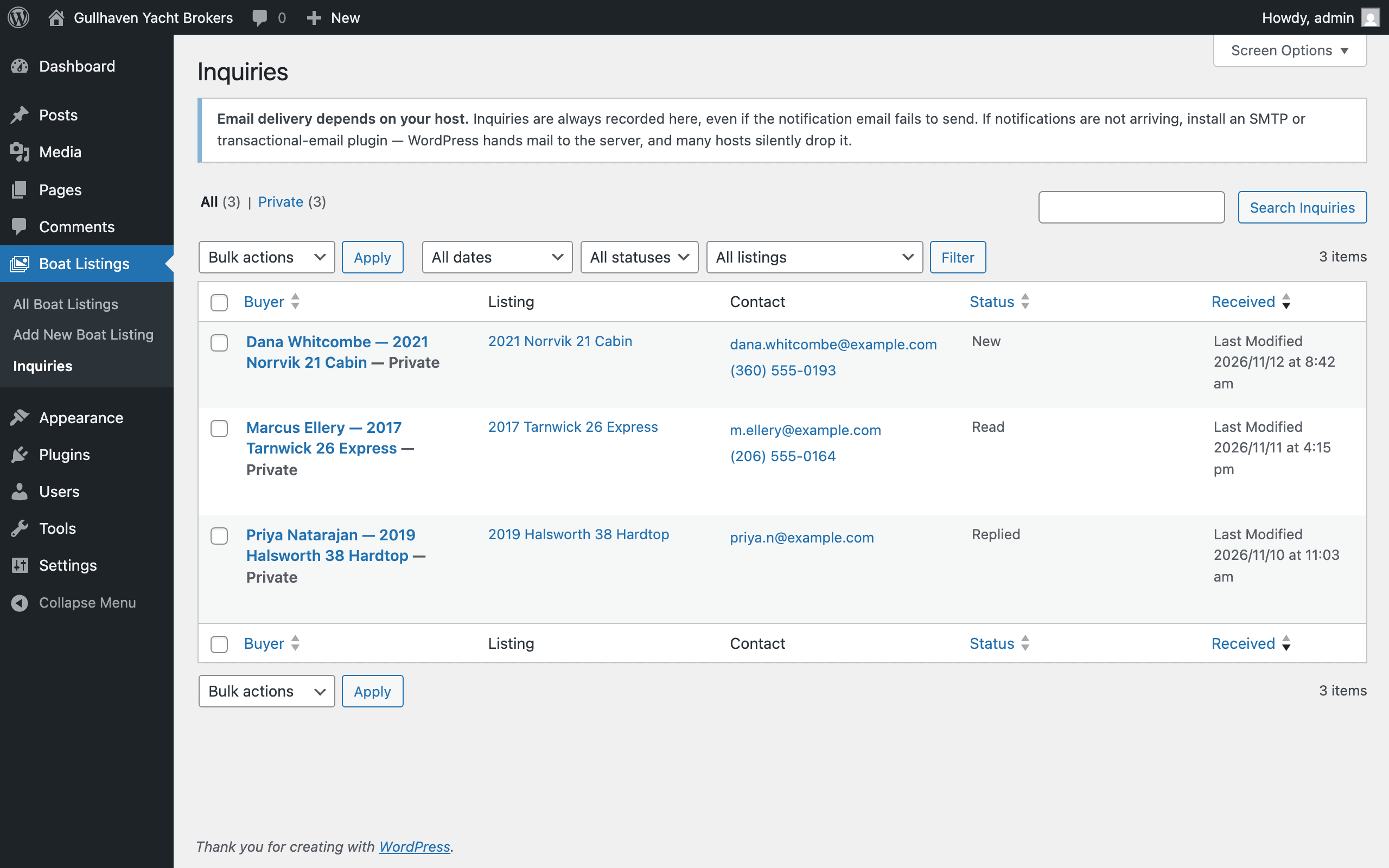
Inquiries are under Boat Listings → Inquiries, and only editors and administrators can read them. The list shows the Buyer, the Listing, their Contact details, the Status (New, Read or Replied) and when it was Received, and can be filtered by status and by listing.
Spam
The form filters spam without a captcha. A hidden field, a minimum time on the page and a limit on how often one visitor, and the whole site, can send each turn a suspect submission away, and the visitor sees the same generic error whichever it was. The Inquiries screen counts what was refused in the last day, so you can see it happening; the count appears only when something was refused.
The form fetches its security token when the page loads, so a full-page cache cannot serve it an expired one. The form needs JavaScript to send.
Sending inquiries to a webhook
On the Flagship tab, under Inquiries, a Webhook URL sends each inquiry on to another
service as well, in the background. It must be an https:// address. Each delivery is a JSON
POST carrying the inquiry, including the buyer's contact details, and an X-GhostLabs-Timestamp
header. Set a Webhook secret and each delivery also carries X-GhostLabs-Signature: sha256=<hex>, an HMAC-SHA256 of the timestamp, a . and the raw body, keyed by the secret, so the
receiver can check it came from your site.
Privacy and how long inquiries are kept
Inquiries are part of WordPress's personal data export and erasure tools, under Tools. The visitor's IP address is never stored with an inquiry. Keep inquiries for (days), on the Flagship tab, deletes inquiries older than that: 730 days unless you change it, and 0 keeps them until you delete them.
PDF brochures
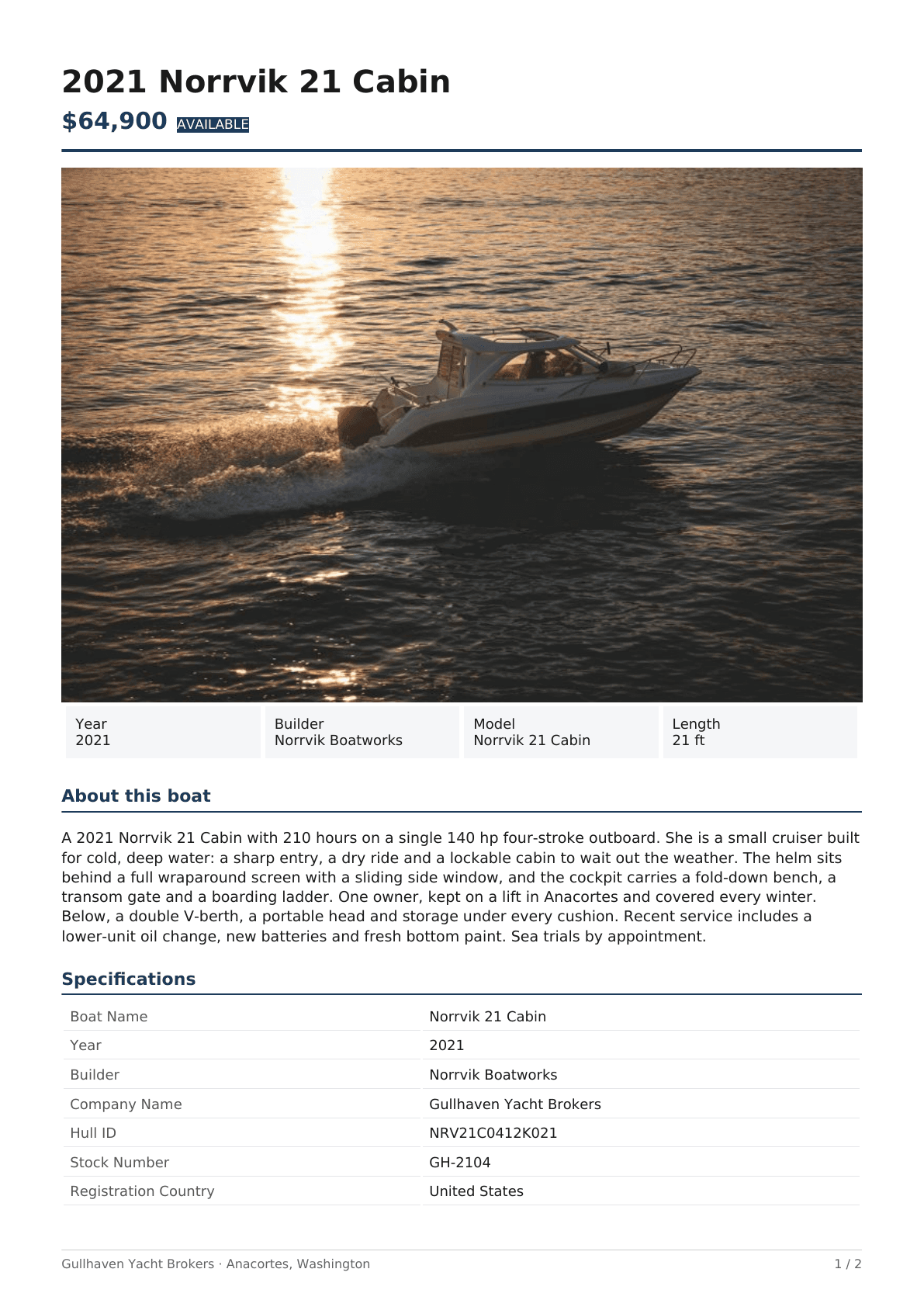
Every published listing has a brochure at its own address: the listing's address followed by
brochure.pdf, such as /boats/<listing>/brochure.pdf. The PCH Boat Listing: Brochure Link
block puts Take it with you and a Download brochure (PDF) link on the listing.
The brochure is made by your own site and kept until the listing changes. An unpublished listing has no brochure, and a password-protected one serves it only to visitors who have entered its password. Brand it on the Flagship tab, under Brochure: Logo attachment ID, Accent color and Footer line, printed at the foot of every page. Left empty, the footer line is your site's name.
A PDF made this way can't carry the structure that screen readers rely on, so the listing page itself is the version to point those readers to.
Marine filters
Above the archive's cards, a Refine row offers whichever of Trailerable, Shallow draft, Liveaboard-ready, Family day boat and the engine types Outboard, Sterndrive / IO, Inboard and Jet drive at least one of your listings qualifies for. Each is worked out from the listing's specifications. A listing without the specifications a filter needs simply doesn't get that filter: it is left out, never marked "no".
Radius search and the archive map
Near takes a place (City, state or ZIP) and a distance, within 25 mi up to within 500 mi, and shows the listings inside it. The archive also has a map of the listings. Your site looks the place up with OpenStreetMap's Nominatim service, up to ten lookups a minute for each visitor. A listing that hasn't been located yet can't match a radius search. Copy link keeps the search and the filters, but not the place and distance.
The loan calculator
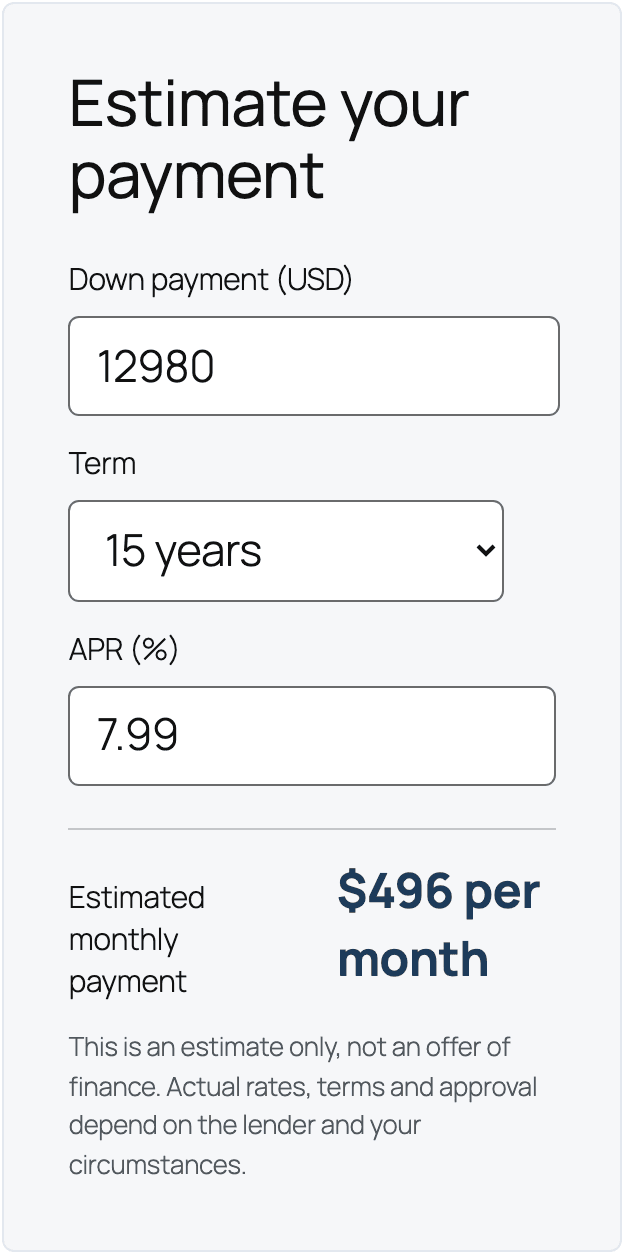
The PCH Boat Listing: Loan Calculator block shows Estimate your payment: a Down payment, a Term of 5, 10, 12, 15 or 20 years, an APR (%), and the Estimated monthly payment. Set the values it starts with in its Starting values panel. It is worked out entirely in the visitor's browser: nothing is sent and nothing is recorded. On a listing without a price, the block shows nothing.
Under it is a disclaimer: "This is an estimate only, not an offer of finance. Actual rates, terms
and approval depend on the lender and your circumstances." Credit wording differs from place to
place, so it can be changed with the ghostlabs_pch_boatlistings_loan_disclaimer filter.
Concierge
Concierge opens on a wide lead photo above both columns, then sets the listing beside a rail holding the inquiry form, the loan calculator and the brochure link. Choose Concierge listing under Default pattern on the Misc tab to start new listings with it.
Three more color schemes
Flagship adds Mahogany, Graphite and Claret to the listing block's Color scheme panel.
The Flagship tab
The settings page gains a Flagship tab, saved with Save Changes:
- Brochure: Logo attachment ID, Accent color and Footer line.
- Inquiries: Webhook URL, Webhook secret and Keep inquiries for (days).